Donavita documentation
Donavita is a complete blood donation website script: people find donors by blood group and distance, families and hospitals post urgent blood requests with a countdown and pledges, donors book a 15-minute slot at a blood drive, everyone sees the live blood stock by group, and supporters make one-time gifts to campaigns. Donors get their own panel with the next eligible date, donation history with certificates and a donor card with a QR code that works offline.
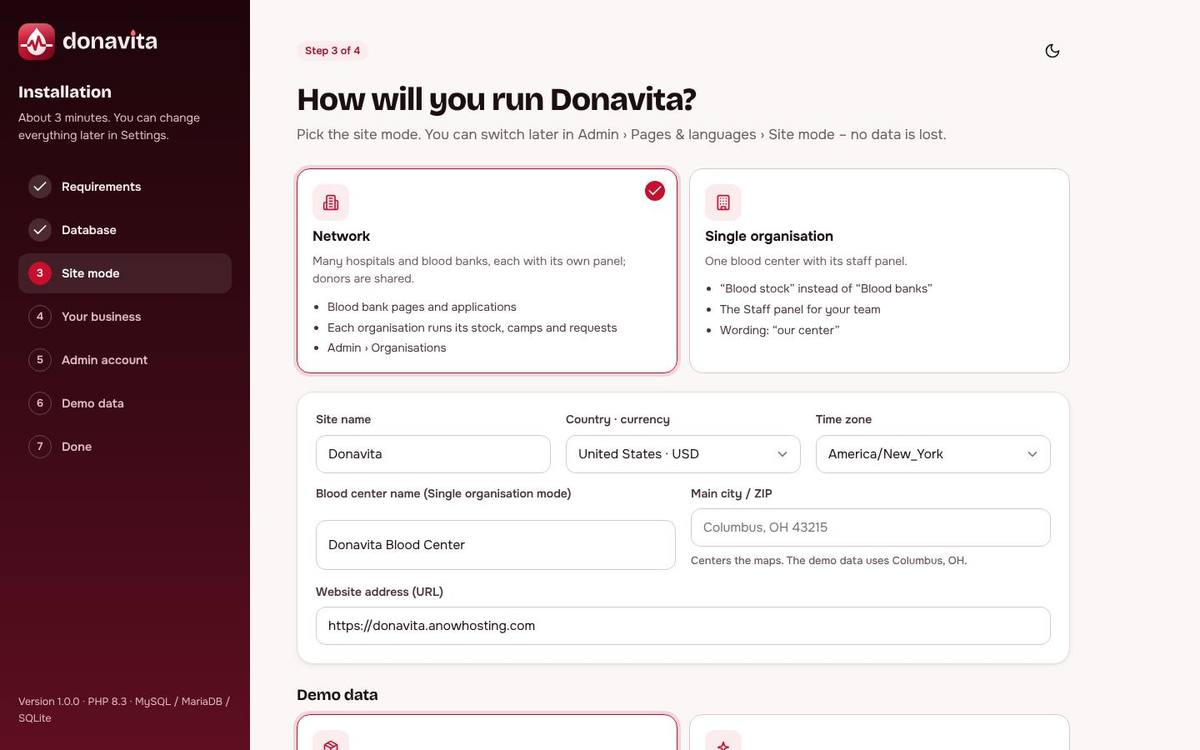
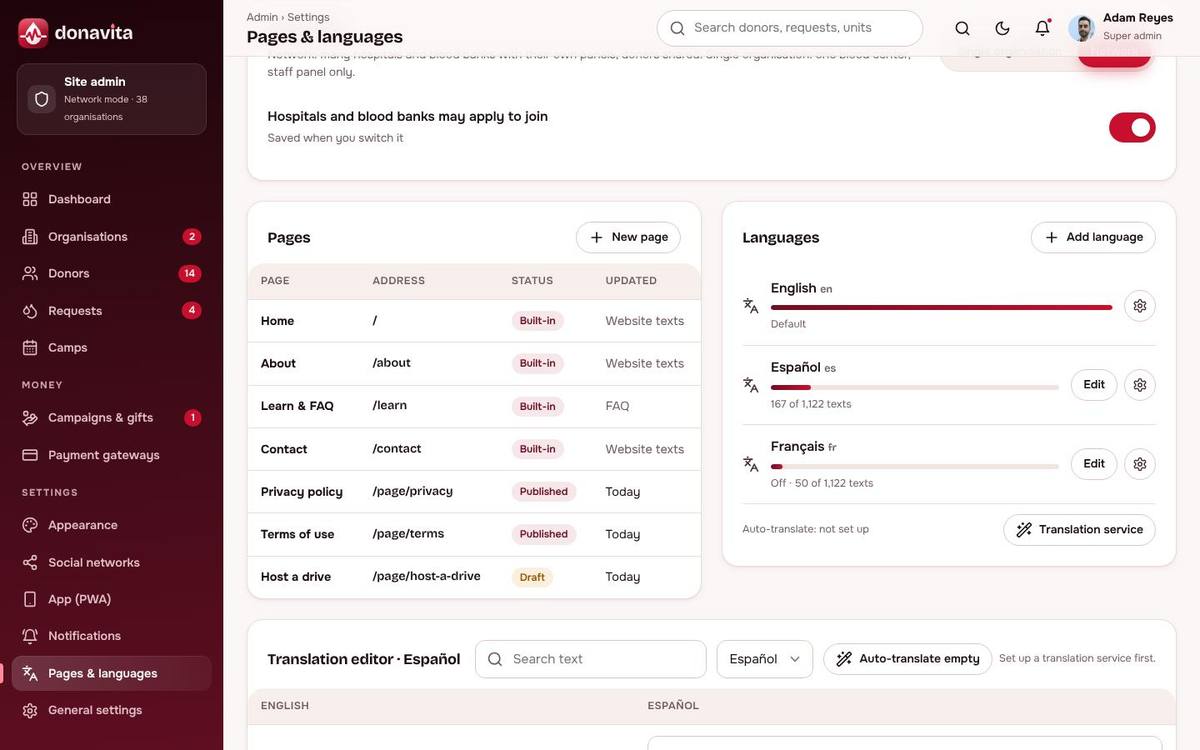
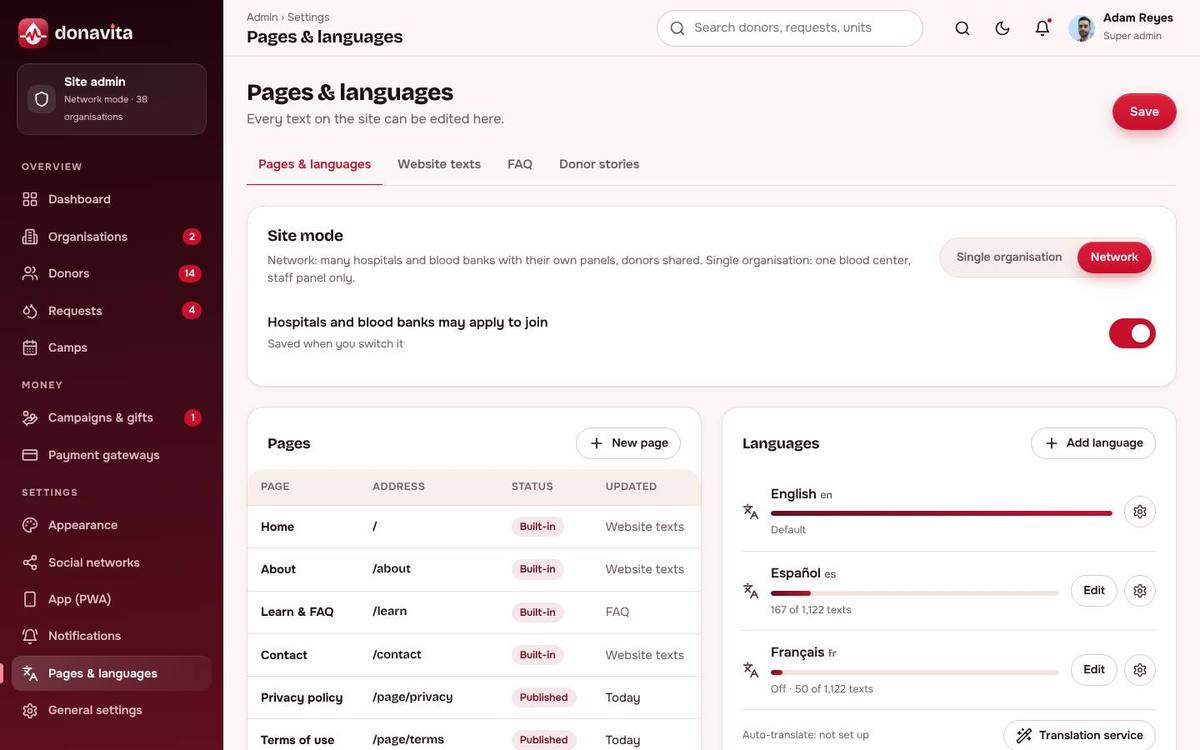
One installation is one website under your own name, colours and texts. In the installer you pick the site mode: Network (many hospitals and blood banks, each with its own panel; donors are shared) or Single organisation (one blood center with its staff panel). You can switch later in Admin › Pages & languages › Site mode – no data is lost. Gifts are paid with Stripe, PayPal, Paystack, Razorpay or bank transfer; each gift is a one-time payment and nothing renews.
Choose your path through this guide
Areas, roles & logins
/donorDashboard with the next eligible date, my donations with certificates, appointments, requests near me and contact requests, notifications, profile & privacy, donor card with QR./orgNetwork: each hospital or blood bank's own panel. Single organisation: the Staff panel of your blood center. Dashboard, blood requests, inventory, camps & slots with QR check-in, appointments, donors, donations log, staff, public page./adminDashboard, organisations (Network), donors, requests and moderation, camps, campaigns & gifts, payment gateways and every setting. The three addresses can be changed (ADMIN_PATH, ORG_PATH, DONOR_PATH in .env).| Role | Where | What it can do |
|---|---|---|
| Super admin | Admin panel | Everything, including payments, the team, the site mode and admin accounts. Created by the installer. |
| Site team | Admin panel | Only the sections you tick: dashboard, organisations, donors, requests, camps, money, settings. |
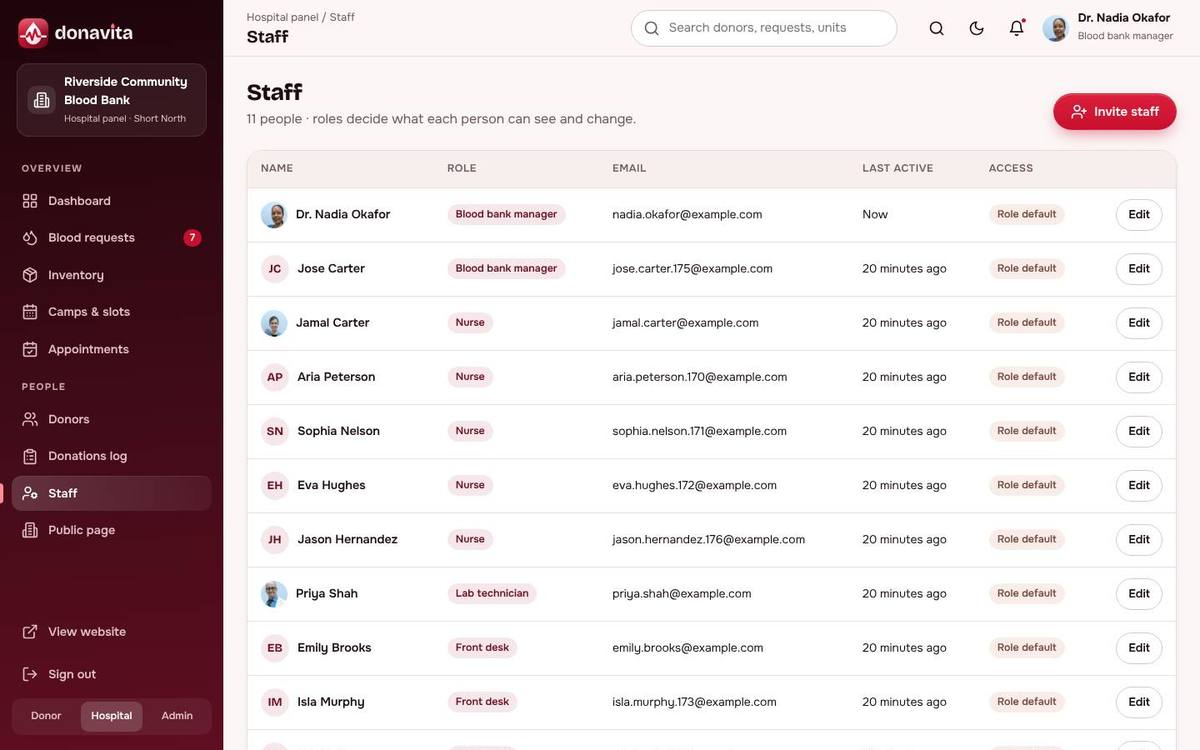
| Organisation staff | Hospital / Staff panel | Manager, nurse, lab or desk – each with its own actions (requests, inventory, camps, appointments, donors, donations, staff, public page). A manager sets the access of the others. |
| Donor | Donor panel | Answers requests, books and changes slots, keeps the donor card, chooses who may contact them and how they are alerted. |
| Guest / family | Public website | Searches donors, asks a donor to get in touch, posts a request with a verified phone number, books a slot, gives a gift. |
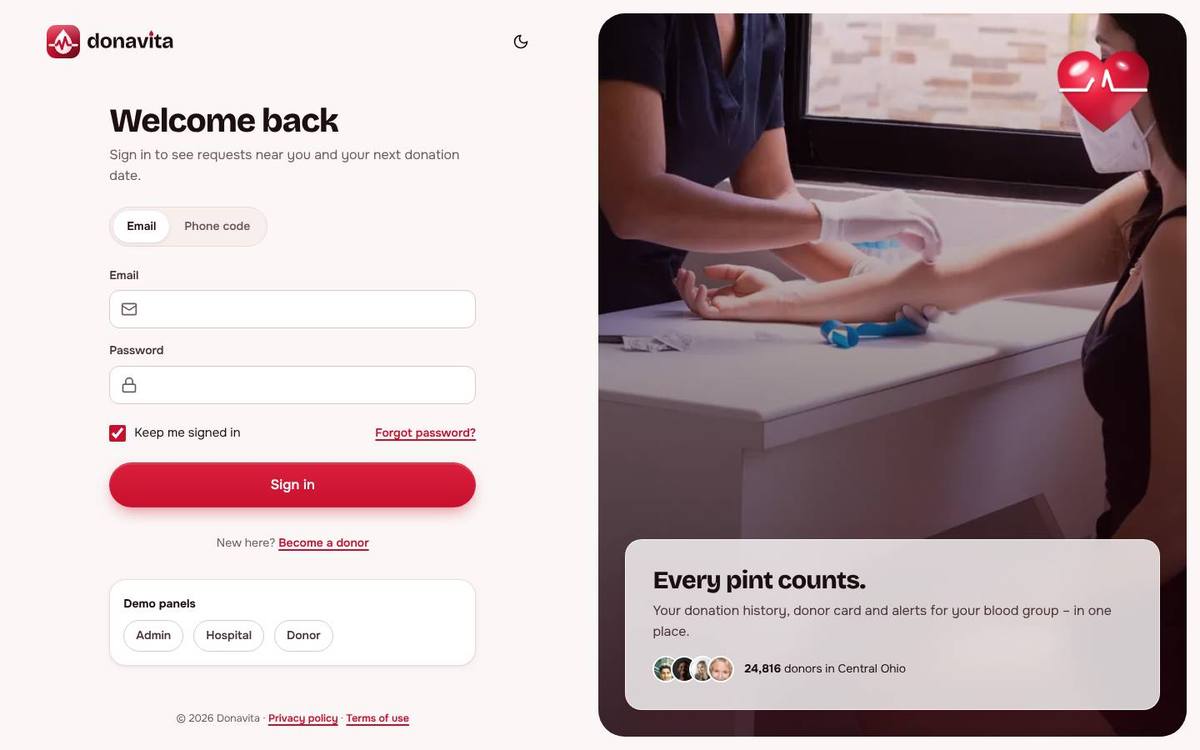
With the demo data the accounts below exist (password password). While demo mode is on, the sign-in page shows one-click buttons: /demo-login/admin, /demo-login/org and /demo-login/donor.
| Account | Role | |
|---|---|---|
| Adam Reyes | adam.reyes@example.com | Super admin – one click: /demo-login/admin |
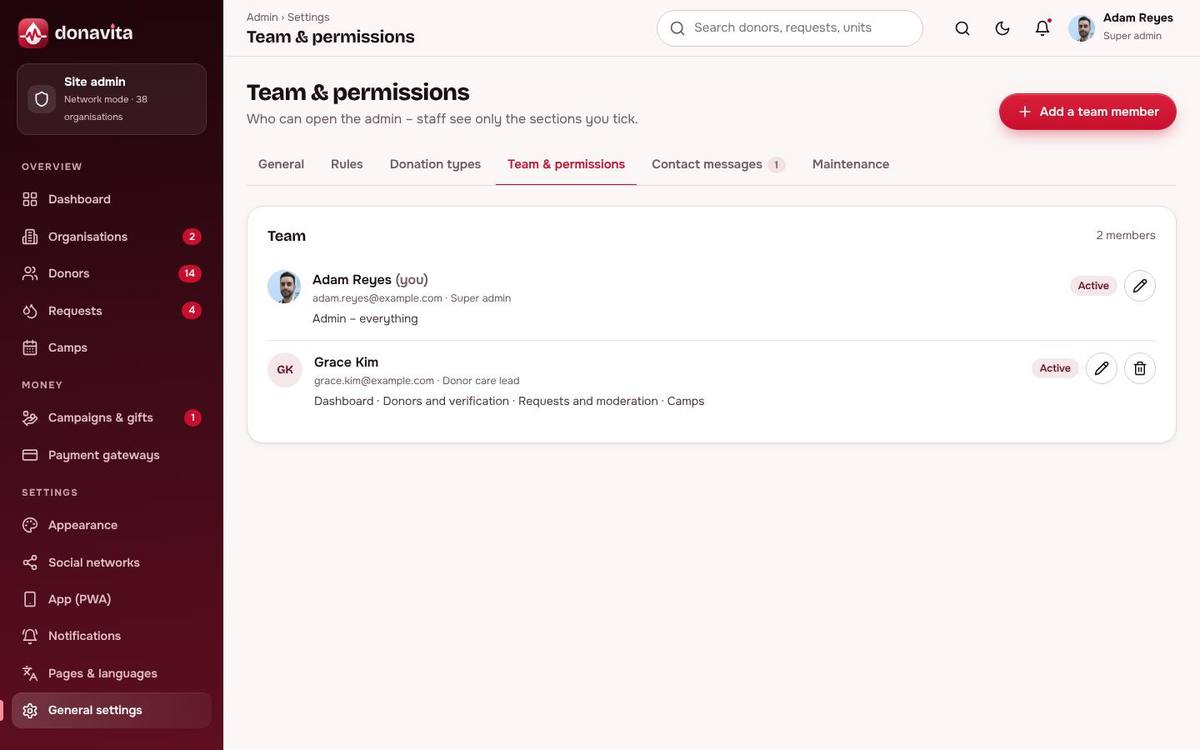
| Grace Kim | grace.kim@example.com | Site team: dashboard, donors, requests, camps |
| Dr. Nadia Okafor | nadia.okafor@example.com | Blood bank manager, Riverside Community Blood Bank – one click: /demo-login/org |
| Jamal Carter · Priya Shah · Emily Brooks | jamal.carter@ · priya.shah@ · emily.brooks@example.com | Nurse · lab · desk at the same blood bank |
| Marcus Bennett | marcus.bennett@example.com | Donor (O−, 14 donations) – one click: /demo-login/donor |
Features
| Area | Included |
|---|---|
| Site modes | Network (hospitals and blood banks apply, get approved and run their own panel) or Single organisation (one blood center) – chosen in the installer, switchable any time. |
| Find donors | Search by blood group (with compatible groups), city or ZIP and distance; list + map; eligible / verified marks; contact stays hidden until the donor accepts the request. |
| Blood requests | Critical / urgent / normal with countdowns, units needed and pledged, component, hospital and map; families post with a verified phone; matched donors are alerted; pledges with a time; review before going live; payment words flagged. |
| Blood drives | Camps with slots (15 minutes by default), beds per slot, donation types, what to bring, calendar file, booking with a quick health check, reminders, QR check-in, walk-ins, no-shows and deferrals. |
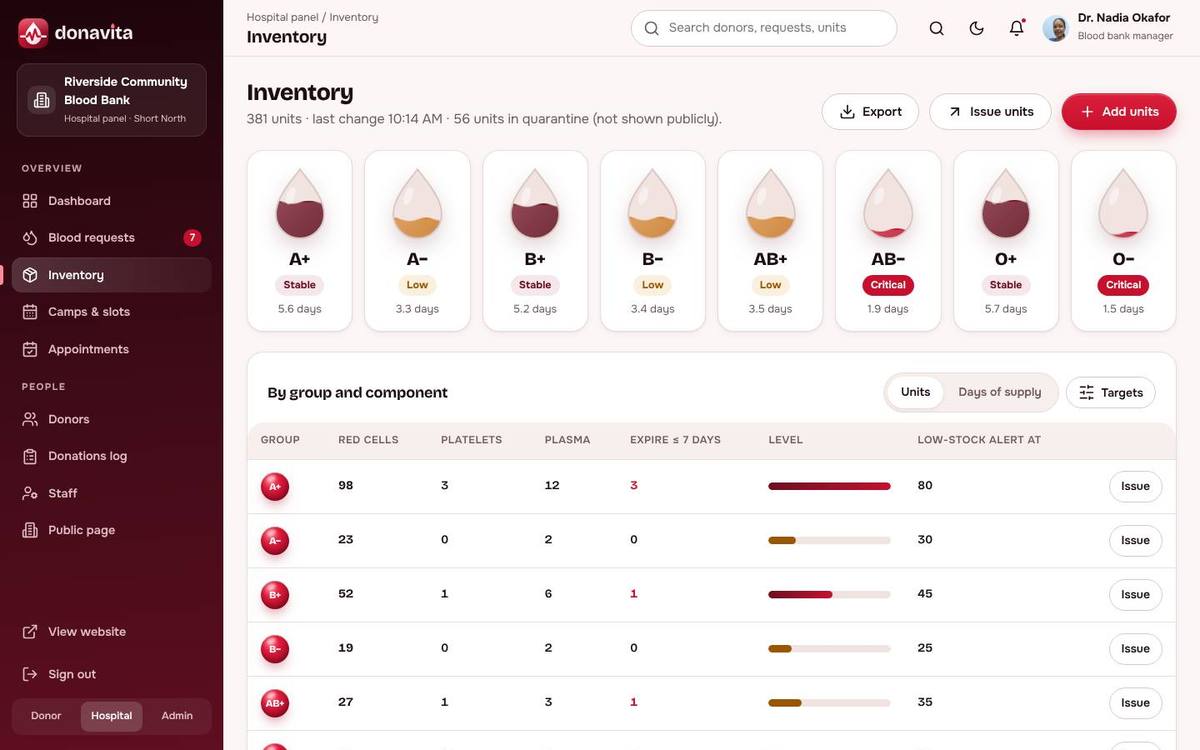
| Blood stock | Units by group and component, targets per group, critical / low / stable / good, days of supply, expiring bags, a 12-week trend and a public stock page; the top line names the critical group automatically. |
| Donor panel | Next eligible date per donation type, history with certificate PDFs, appointments to change or cancel, requests near me, contact requests, badges, privacy switches, alert radius and channels, donor card with QR (offline). |
| Hospital / Staff panel | Dashboard, requests, inventory with bag IDs, screening and expiry, camps & slots, today's appointments, donors, donations log with CSV, staff roles and access, public page with its own social links. |
| Gifts | Campaigns with goal, progress, updates and gift lists; one-time gifts with suggested amounts, “cover the fee”, receipts; Stripe, PayPal, Paystack, Razorpay, bank transfer with receipt upload and approval. No auto-renew. |
| Notifications | E-mail (SMTP), SMS (Twilio, Vonage), WhatsApp (Cloud API, Twilio), in-app bell; event matrix, templates with variables, quiet hours with a critical override, phone codes for sign-up and requests. |
| Look & feel | Light theme by default and a full dark theme, 5 colour presets and custom colours with automatic AA button text, motion, glass panels and 3D illustrations each with a switch, Leaflet maps with light and dark tiles. |
| Everything else | Installable app (PWA) with offline page, social networks with icon upload, pages and FAQ, languages with auto-translate, SEO (sitemap, schema, share image), staff permissions, backups, one-click update, demo mode, browser installer. |
Server requirements
| Item | Needed |
|---|---|
| PHP | 8.3 or newer (8.4 works) |
| PHP extensions | pdo, pdo_mysql (or pdo_sqlite), mbstring, openssl, tokenizer, xml, ctype, json, fileinfo, curl, gd (with WebP), zip (updates and backups) |
| Database | MySQL 5.7+ / MariaDB 10.3+ (recommended) or SQLite 3 |
| Web server | Apache or LiteSpeed with mod_rewrite (the .htaccess files are included), or Nginx |
| Cron | One cron job every minute (reminders, queued texts, closing old requests, expiring units, stock snapshots, backups) |
| HTTPS | An SSL certificate – needed for the payment gateways, the installable app and “near me” location |
Everything needed to run is inside the package, including the vendor folder – no Composer, no Node and no build step on your server. The maps use free OpenStreetMap tiles; no map key is needed.
Package contents
Donavita-v1.0.0.zip
├── donavita/           the script (upload this)
│   ├── app, bootstrap, config, database, resources, routes, storage, vendor
│   ├── public/         assets (CSS, JS, fonts, Leaflet, demo photos), uploads, codester/ (online documentation)
│   ├── index.php + .htaccess   let the whole folder run from a document root
│   └── start-windows.bat       local start on Windows
├── documentation/      this guide (open index.html)
└── START-HERE.txt
Install on cPanel / shared hosting
- Create the domain. In cPanel Domains add your domain or sub-domain (for example
give.example.com) and note its document root, for example/home/user/give.example.com. - Create a database. cPanel MySQL® Databases: a new database, a new user with a strong password, and add the user to the database with All privileges.
- Choose PHP 8.3+. cPanel Select PHP Version or MultiPHP Manager; switch on the extensions listed under Server requirements.
- Upload. Upload
Donavita-v1.0.0.zipwith the File Manager, Extract it, and move the contents of thedonavitafolder into the document root, so thatindex.php,.htaccess,app,public… sit directly inside it. Show hidden files in the File Manager so the.htaccessfiles are moved too.- The included
index.phpand.htaccesssend every request to thepublicfolder and block the program folders – nothing private can be opened from the browser. - Alternatively set the document root of the domain to the
publicfolder (Domains › Manage › Document root). Both ways work.
- The included
- Open your domain. The installer starts automatically (see The browser installer).
- Add the cron job in cPanel Cron Jobs, every minute (see Cron job).
- Switch on HTTPS (cPanel SSL/TLS Status → AutoSSL or Let's Encrypt), then Admin › General settings › Always use https://.
Install on a VPS (Nginx / Apache)
cd /var/www
unzip Donavita-v1.0.0.zip
mv donavita /var/www/donavita
chown -R www-data:www-data /var/www/donavita
chmod -R 775 /var/www/donavita/storage /var/www/donavita/bootstrap/cache /var/www/donavita/public/uploads /var/www/donavita/database
Nginx
server {
    listen 80;
    server_name give.example.com;
    root /var/www/donavita/public;
    index index.php;
    client_max_body_size 32M;
    gzip on;
    gzip_types application/json application/javascript text/css image/svg+xml application/manifest+json;

    location / { try_files $uri $uri/ /index.php?$query_string; }
    location ~ \.php$ {
        include snippets/fastcgi-php.conf;
        fastcgi_pass unix:/run/php/php8.3-fpm.sock;
    }
    location ~* \.(css|js|woff2)$ { expires 1y; add_header Cache-Control "public, immutable"; try_files $uri /index.php?$query_string; }
    location ~* \.(webp|png|jpe?g|svg|ico)$ { expires 30d; try_files $uri /index.php?$query_string; }
    location ~ /\.(?!well-known) { deny all; }
}
SSL: certbot --nginx -d give.example.com.
Apache
<VirtualHost *:80>
    ServerName give.example.com
    DocumentRoot /var/www/donavita/public
    <Directory /var/www/donavita/public>
        AllowOverride All
        Require all granted
    </Directory>
</VirtualHost>
Then open the domain in the browser – the installer starts – and add the cron job for the web server user: crontab -u www-data -e.
Install on Windows (XAMPP / Laragon)
- Install XAMPP or Laragon with PHP 8.3+ and start Apache and MySQL.
- Unzip the package and copy the folder
donavitatoC:\xampp\htdocs\donavita(Laragon:C:\laragon\www\donavita). - Create an empty database in phpMyAdmin (for example
donavita, collationutf8mb4_unicode_ci). - Open
http://localhost/donavitaand follow the installer. - Or double-click
start-windows.batin the folder: it starts PHP's own web server onhttp://127.0.0.1:8000(PHP must be in the PATH).
The browser installer
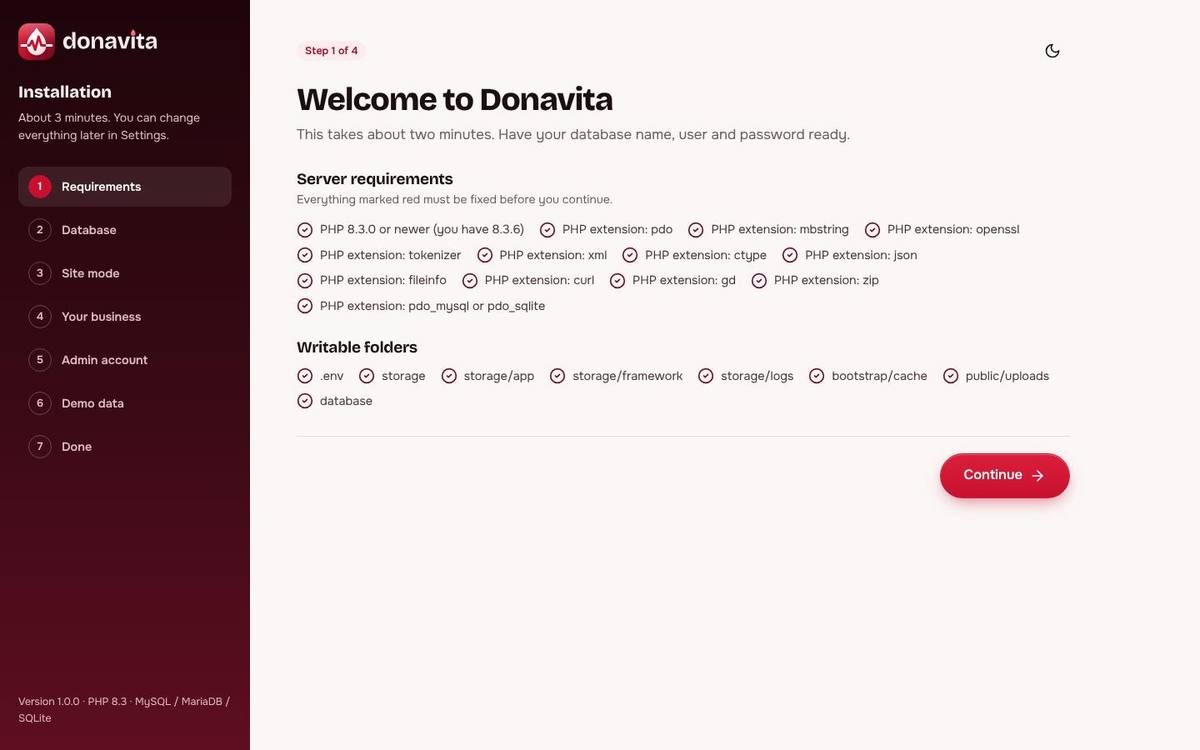
On the first visit every address redirects to /install. The installer checks the server, writes the .env file with a new application key and sets up the database.
- Requirements – PHP version, extensions and writable folders, each with a clear OK / missing mark.
- Database – MySQL / MariaDB (host, port, name, user, password – the connection is tested) or SQLite (no settings).
- Site mode & your site – Network or Single organisation, then site name, country and currency, time zone, the blood center name (Single organisation), main city / ZIP (centres the maps), website address, Import demo data or Start empty, and your admin account.
- Progress – the import runs in short steps with a progress bar, each well under a second on a normal host, so it finishes on small shared hosting too. If the browser is closed, open the address again and press Retry: finished steps are not repeated.
The demo data tells one story in Columbus, Ohio: 38 hospitals and blood banks (Network, plus 2 applications waiting) or the “Donavita Blood Center” (Single organisation) with its team, 24,816 donors who joined over seven years, about 117,000 donations with their bags, open and fulfilled requests, blood drives with booked slots, a live day of appointments, stock by group with a 12-week trend, four campaigns with every gift, donor stories and FAQs. The installer then locks itself (storage/app/installed.lock). To install again on a fresh database, delete that file and .env.
Start empty for your real website. You get the donation types (whole blood, Power Red, platelets, plasma with their waiting times), eligibility questions, pages, FAQs, e-mail and text templates and the default settings, ready for your own organisations, drives and campaigns.
Cron job & scheduled tasks
Add one cron job that runs every minute (cPanel Cron Jobs → “Once Per Minute”):
* * * * * cd /home/user/give.example.com && php artisan schedule:run >> /dev/null 2>&1Use the real path of the folder that holds artisan. On some hosts the PHP binary has a version in its path, for example /usr/local/bin/ea-php83 or /opt/cpanel/ea-php83/root/usr/bin/php.
| Task | When | What it does |
|---|---|---|
dv:daily | every 10 minutes | Sends SMS / WhatsApp messages that waited for the end of quiet hours, appointment reminders (hours before, your setting), “you can give again” notices, closes requests after their deadline, takes expired units out of the stock and writes today's stock snapshot (the 12-week trend). |
dv:prune | daily | Removes old read notifications and old activity rows. |
dv:backup | 2 AM, daily or Sundays | Compressed SQL backup when automatic backups are on. |
dv:demo-today | every 5 minutes | Demo mode only – keeps “today” moving: the day's appointments follow the clock, new bags, gifts and requests keep their times. |
dv:demo-reset | every 6 hours | Demo mode only – loads fresh demo data (site mode, keys and your real team are kept). |
Admin › General settings › Maintenance shows when the cron job last ran and the exact line for your server.
First steps after installing
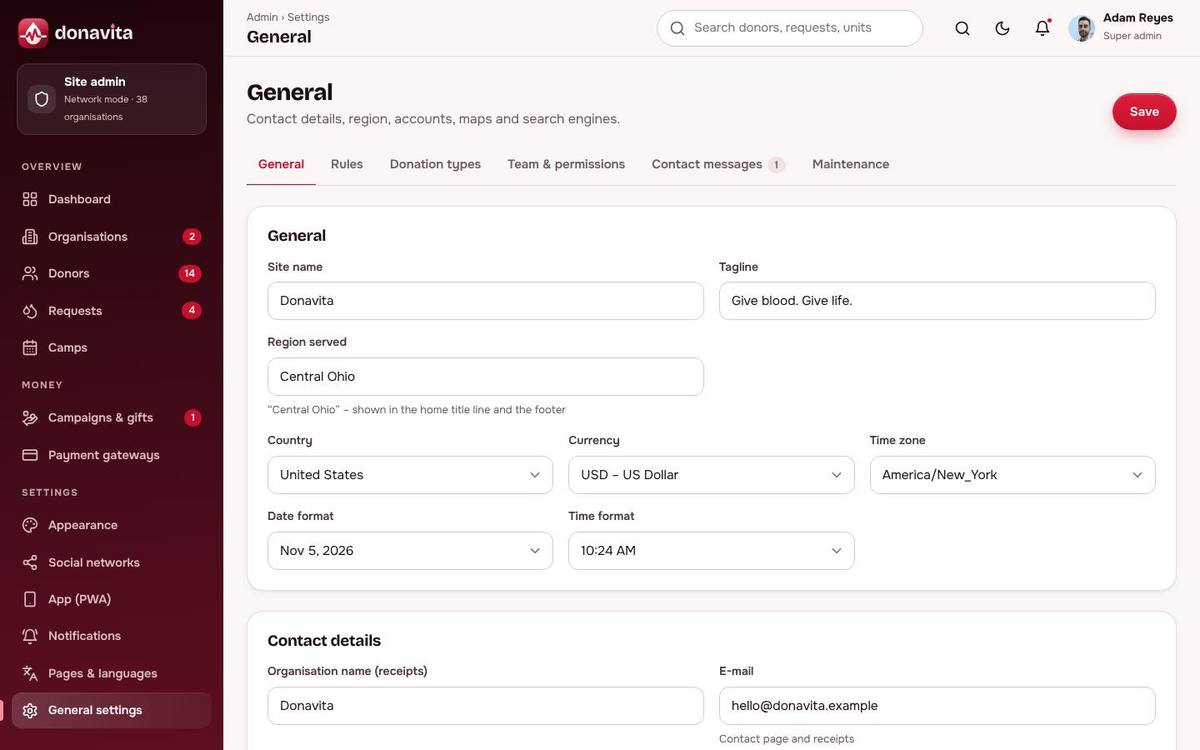
- General settings – site name, region served, contact details, time zone, date format; sign-in options (phone code, Google, Apple).
- Appearance – pick a colour preset or your own colours, upload the logo, choose the default theme.
- Notifications – set up e-mail sending (SMTP) and, if you like, SMS and WhatsApp; send a test from each card.
- Organisations – Network: add hospitals and blood banks or let them apply; Single organisation: fill in your blood center's address, hours and stock targets in the Staff panel.
- Payment gateways – switch on the gateways you use, paste the keys and copy the webhook URLs into the gateway dashboards.
- Social networks and App (PWA) – add your social links, check the app name and icons.
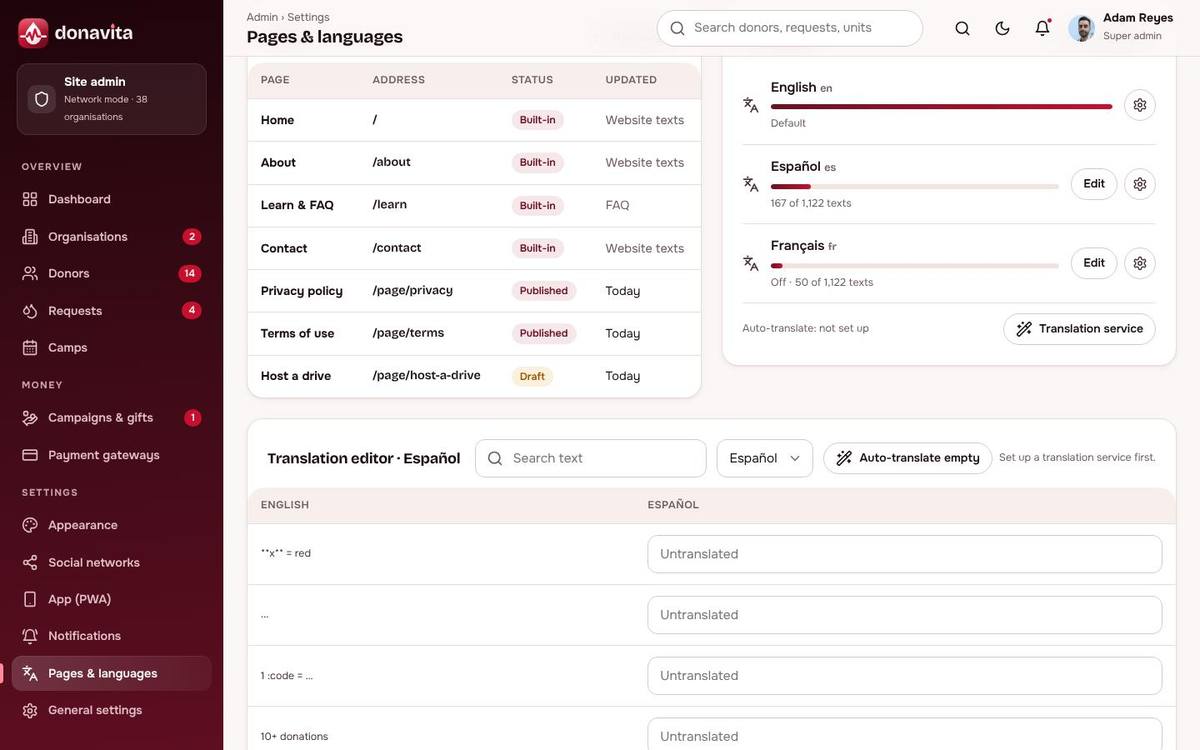
- Pages & languages – edit privacy, terms and the website texts; add a language and auto-translate it if you need one.
Network or Single organisation
The site mode decides how the whole website talks and which areas are open. Change it in Admin › Pages & languages › Site mode; it takes effect at once and keeps every record.
| Network | Single organisation | |
|---|---|---|
| Who runs it | A regional platform; many hospitals and blood banks | One blood center |
| Public pages | Blood banks list and pages, stock by bank and region | Blood stock of your center (no Blood banks pages) |
| Panel | Hospital panel for each organisation (/org) | Staff panel of your center (/org) |
| Admin | Organisations with applications, approval, suspension | Organisations menu hidden |
| Wording | “hospitals and blood banks near you” | “our center”; requests name the hospital they serve |
Switching to Single organisation creates “the site's own blood center” from your General settings when there is none yet. Applications from hospitals can be switched off in the same screen (Hospitals and blood banks may apply to join).
The public website
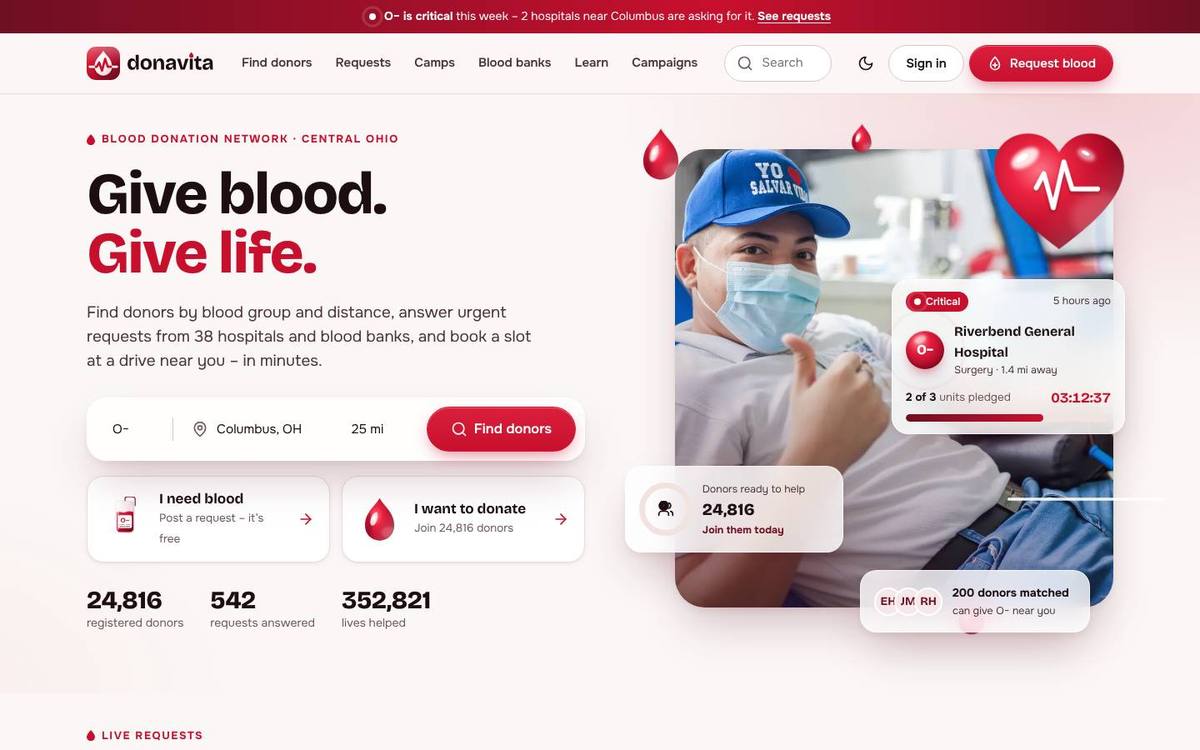
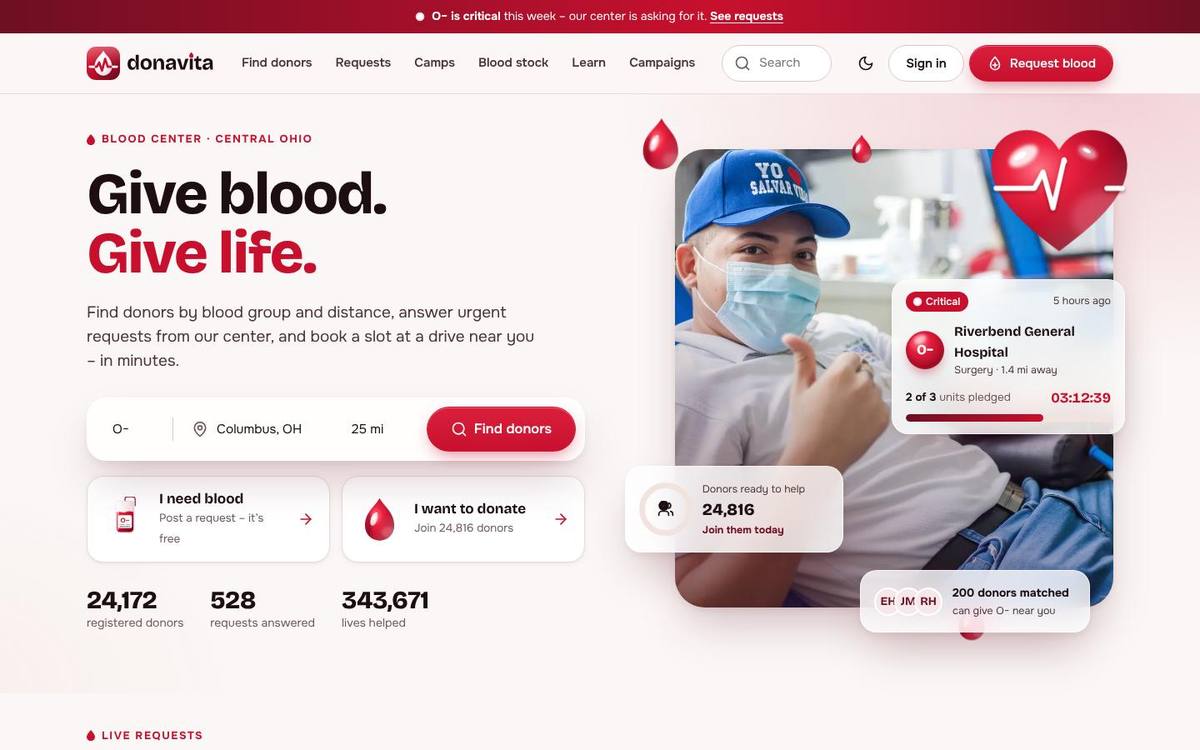
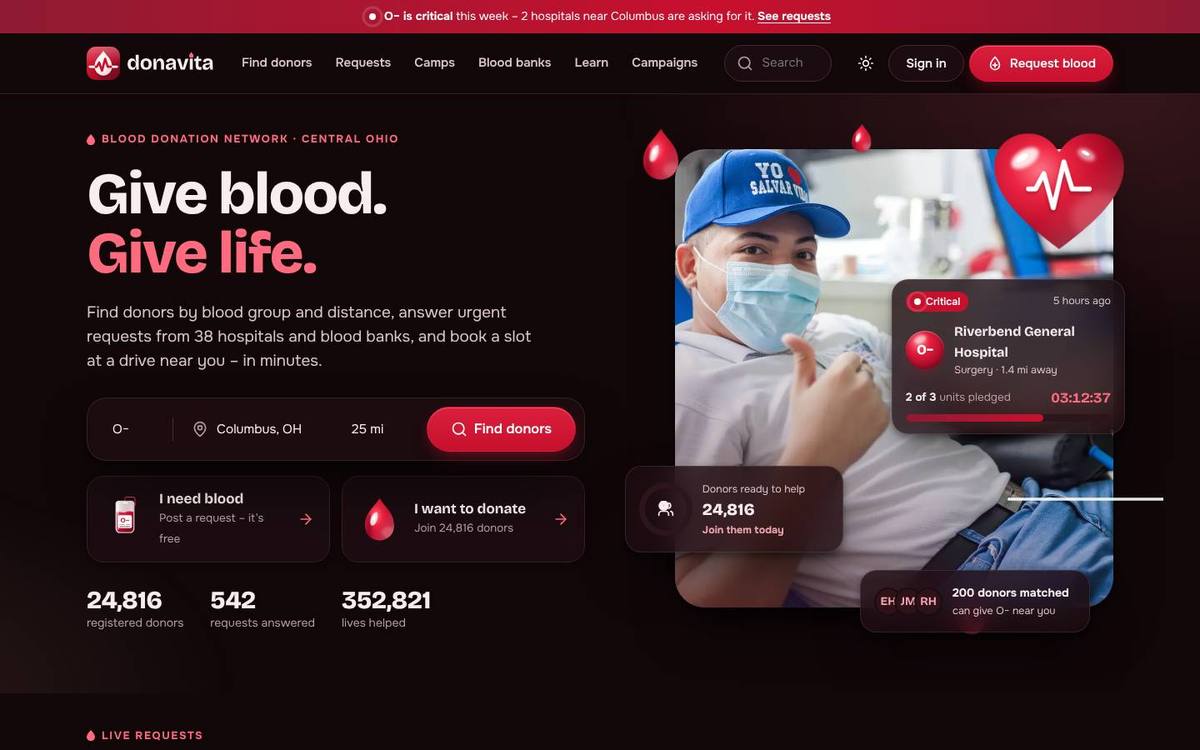
The header shows Find donors, Requests, Camps, Blood banks (Network) or Blood stock, Learn and Campaigns, a search box, the theme switch, Sign in and the red Request blood button. The top line above it names the most critical blood group automatically from the stock, or shows your own text. Every header link, home title, section text, footer column and the newsletter / install banners are settings (Pages & languages › Website texts).
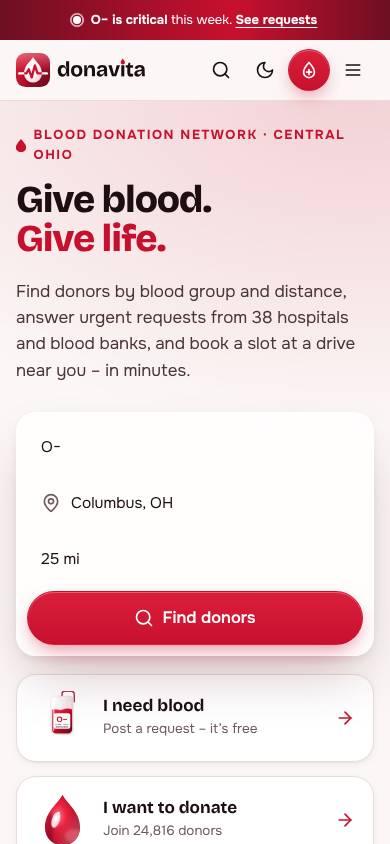
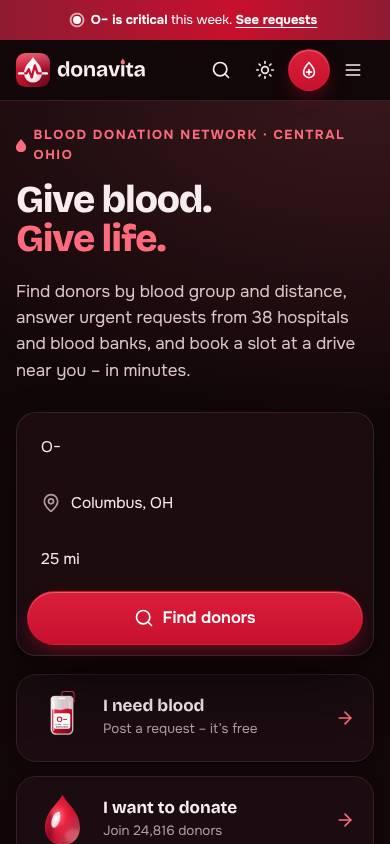
The home page carries the donor search, “I need blood” / “I want to donate”, live counters, urgent requests, how it works, blood drives near the main city, stock drops by group, the impact band, donor stories, campaigns and the app banner. The header collapses step by step on smaller screens (search to an icon, then a “More” menu, then the ☰ drawer) and the top bar is 60 px on phones with the icons on the right.
Find donors & privacy
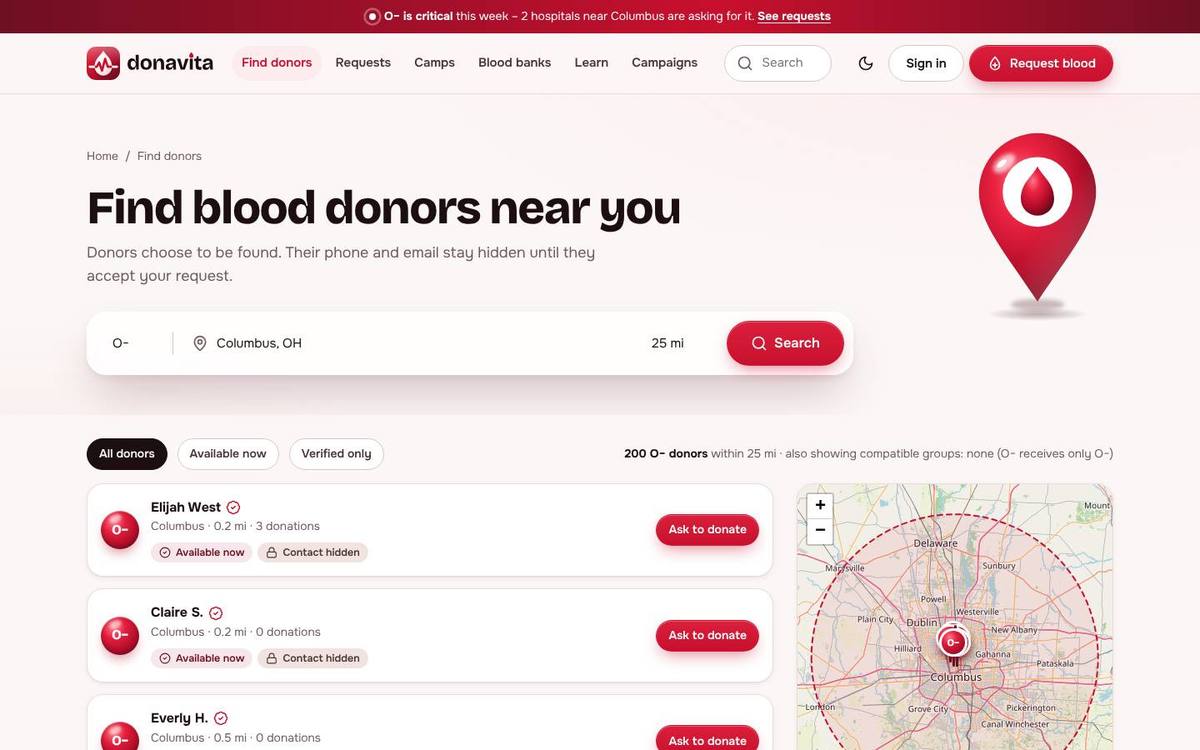
Find donors searches by blood group (the list includes every group that can give to it), city or ZIP code and distance, as a list and on the map. Each card shows the group, the area, “eligible now” or the next date, “verified” and the number of donations – never the phone number or the exact address.
A visitor who wants to reach a donor sends a contact request (name, phone, e-mail, message, optional request number). The donor accepts or declines in the donor panel; only after accepting does the requester see the donor's details on a private status page. Donors choose in Profile & privacy: available for requests, show phone after accepting, appear in Find donors, show only the initial of the last name.
Blood requests
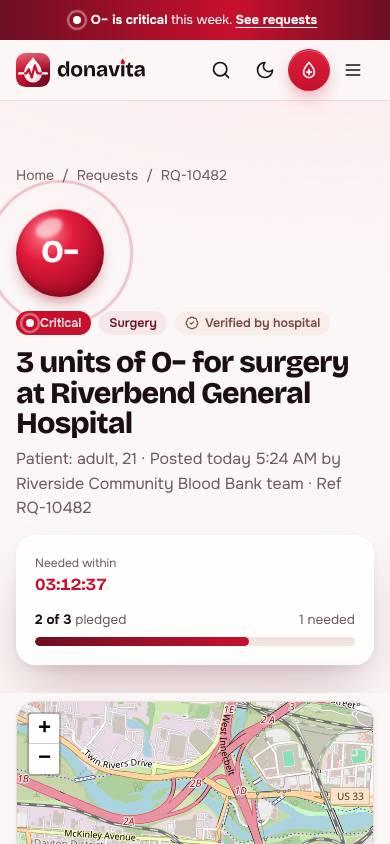
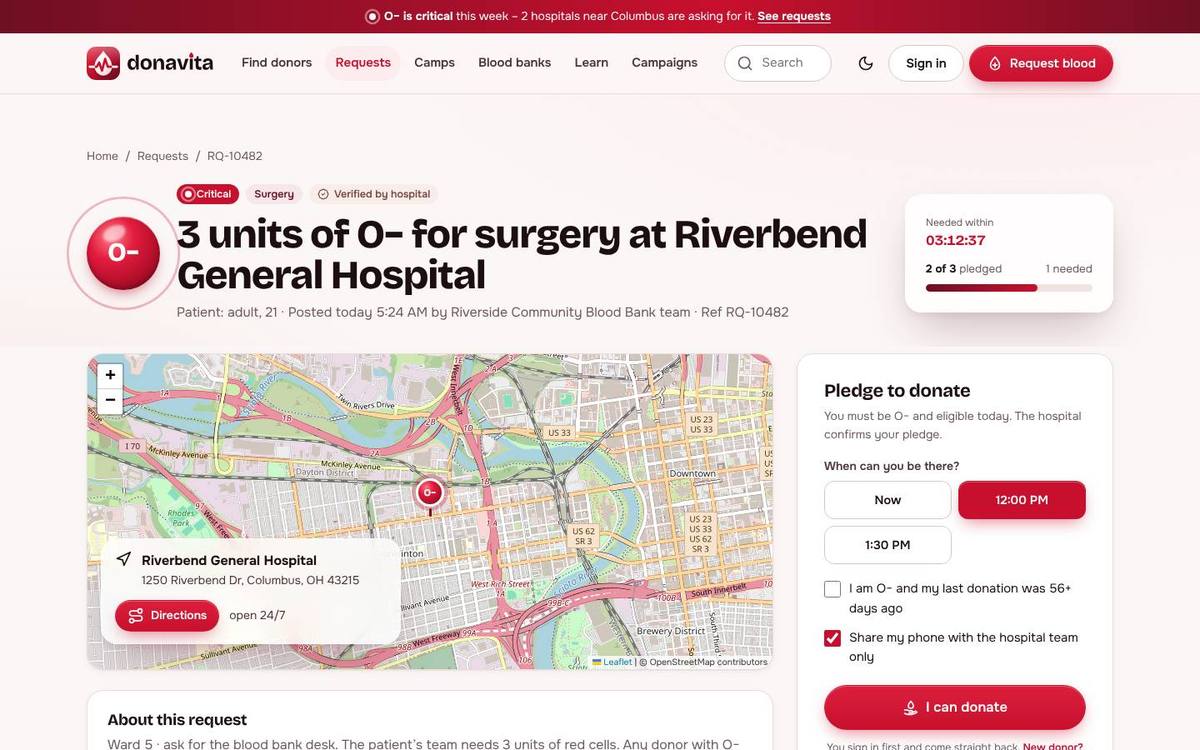
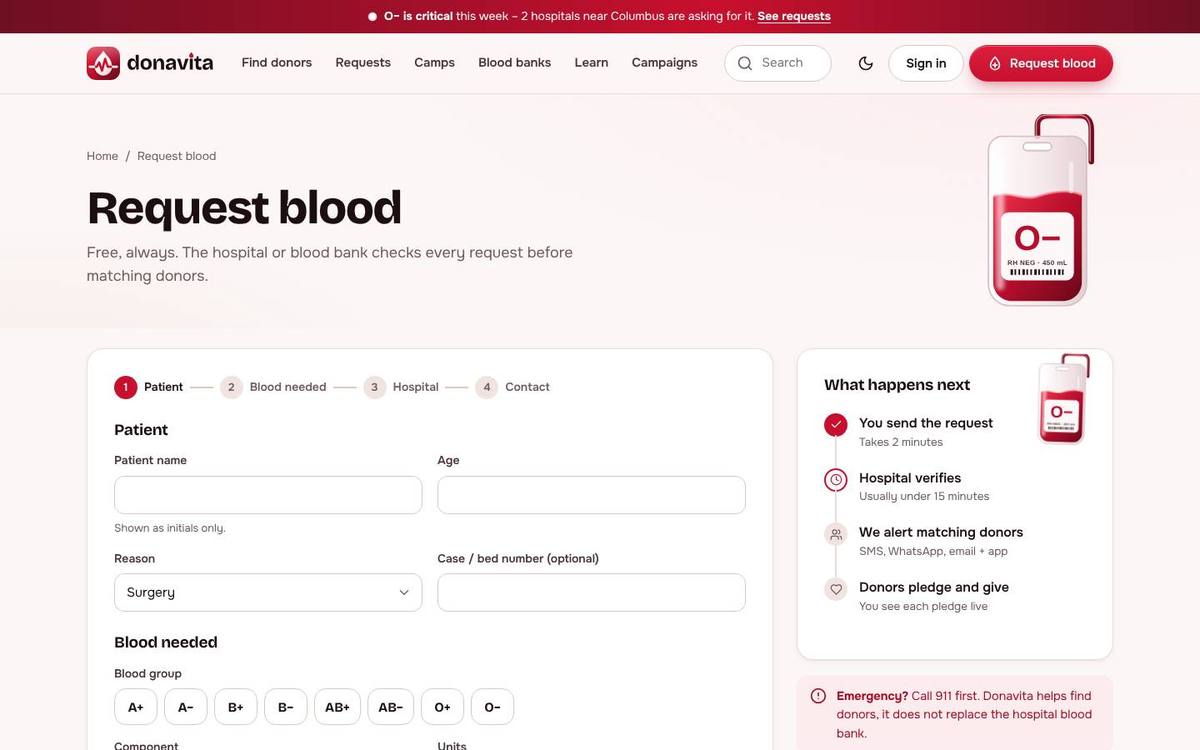
Requests are free. Each one has a code (RQ-…), urgency (critical, urgent, normal – chosen from the time it is needed by, hours set in Rules), blood group and component (whole blood, red cells, platelets, plasma), units needed, the hospital with its map, the patient reference and a live countdown. Donors who can give press I can donate, pick a time and get directions; the request shows units pledged and received.
- Families post on
/requests/newafter confirming their phone with a code. With Family requests are checked before they go live (on by default) they wait in Admin › Requests › Review. - Hospitals and blood banks post from their panel and the request goes live at once.
- When a request goes live, compatible donors within the alert radius are alerted by their chosen channels (the number per request is a setting).
- Staff confirm pledges, mark no-shows and received units; the request is fulfilled when the units are in, and closes on its own after the deadline.
Blood drives & booking a slot
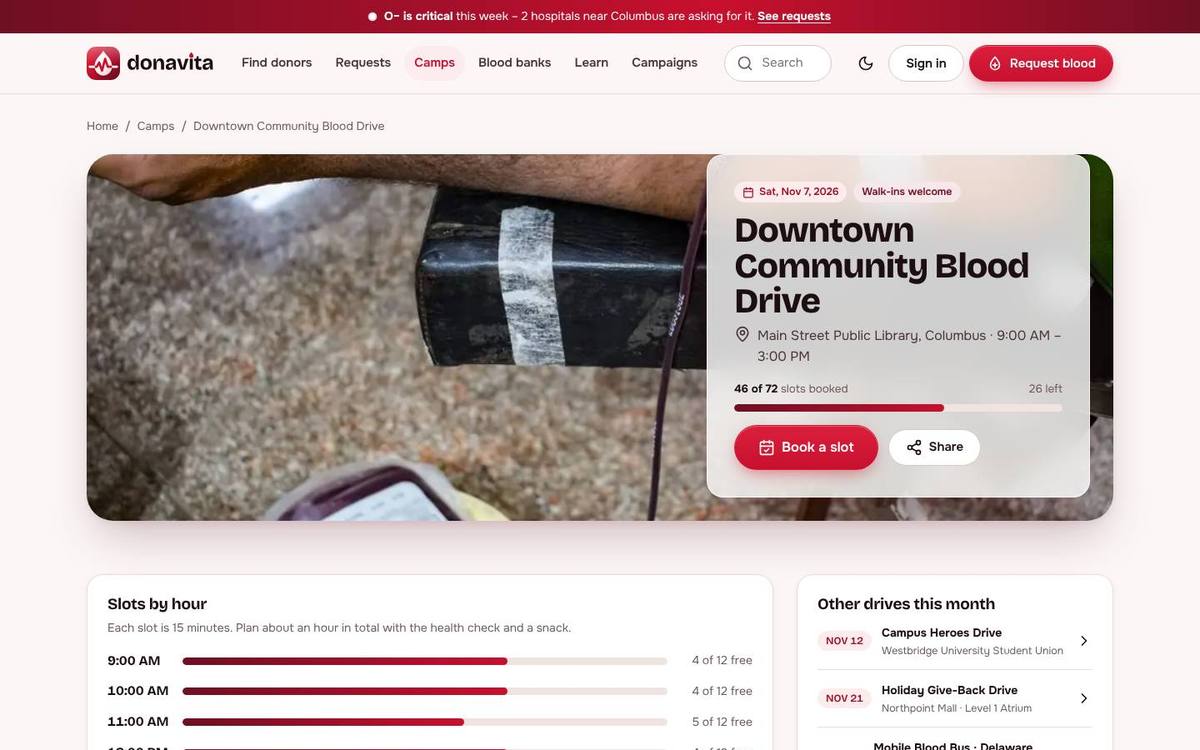
Camps (blood drives) are run by an organisation at its own place or at a host site. Each drive has a date, hours, address with map, beds, slot length (15 minutes by default), donation types, what to bring and a calendar file. Organisations also open their own center for appointments.
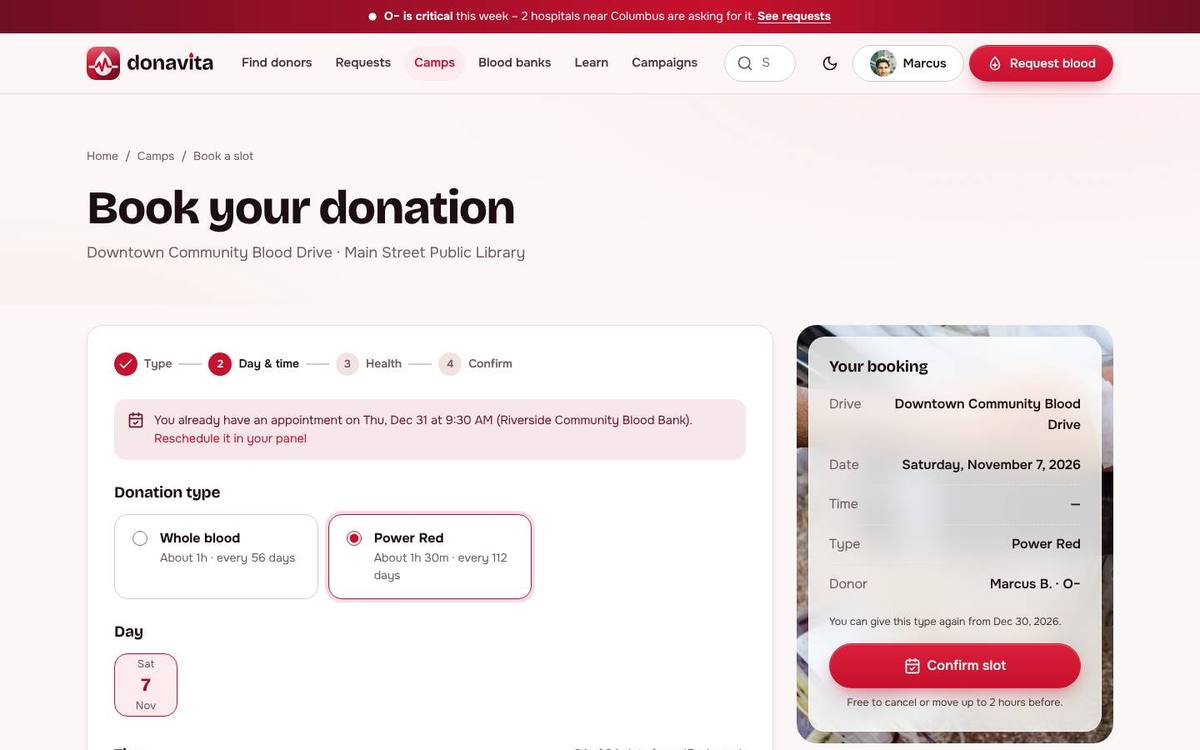
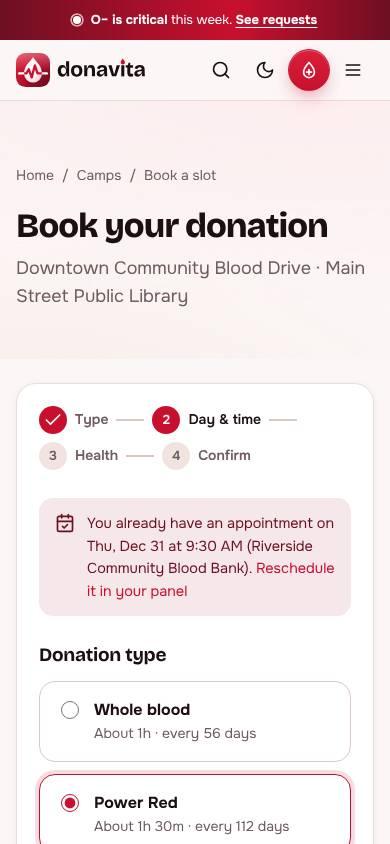
Booking: pick the day from the day strip, a free slot, the donation type, answer the quick health questions and confirm. The donor gets an appointment code (AP-…) with a QR code, a reminder before the visit, and can change or cancel until the time you set. A donor can hold one upcoming appointment at a time and only slots on or after the next eligible date are offered.
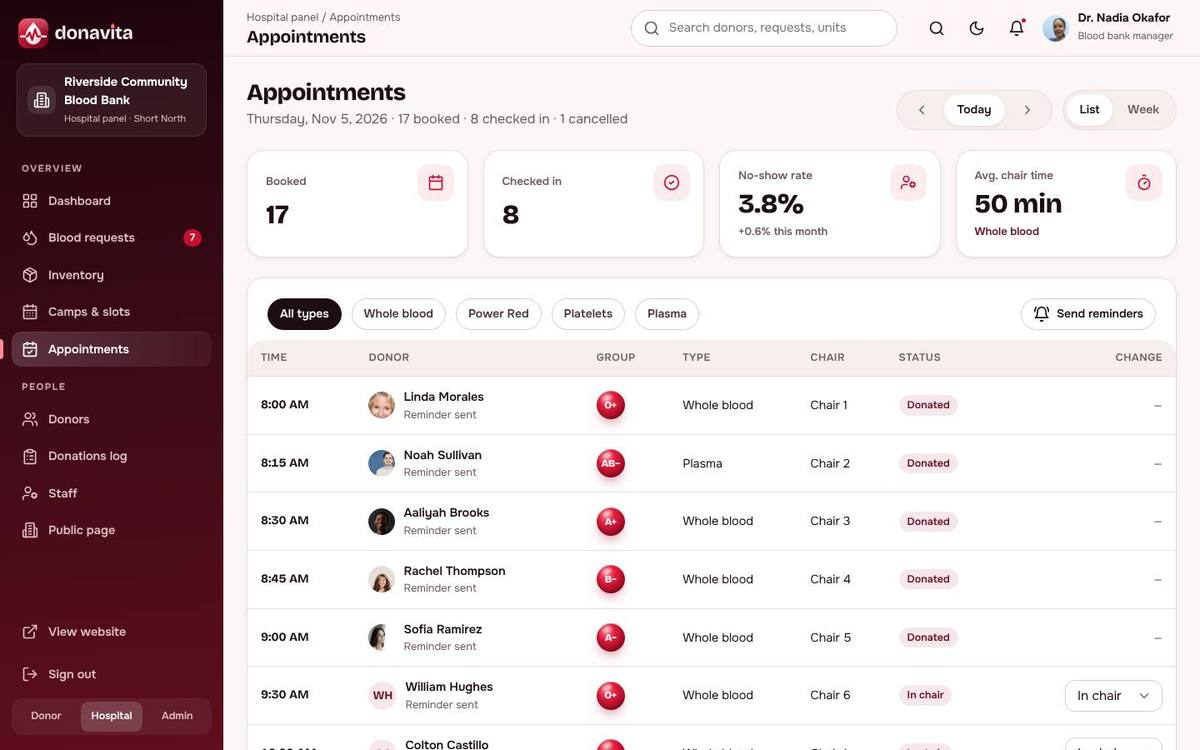
On the day, staff check donors in by scanning the appointment QR or the donor card QR, add walk-ins, record the donation (bag ID, volume, screening) or a deferral, and mark no-shows.
Blood banks & blood stock
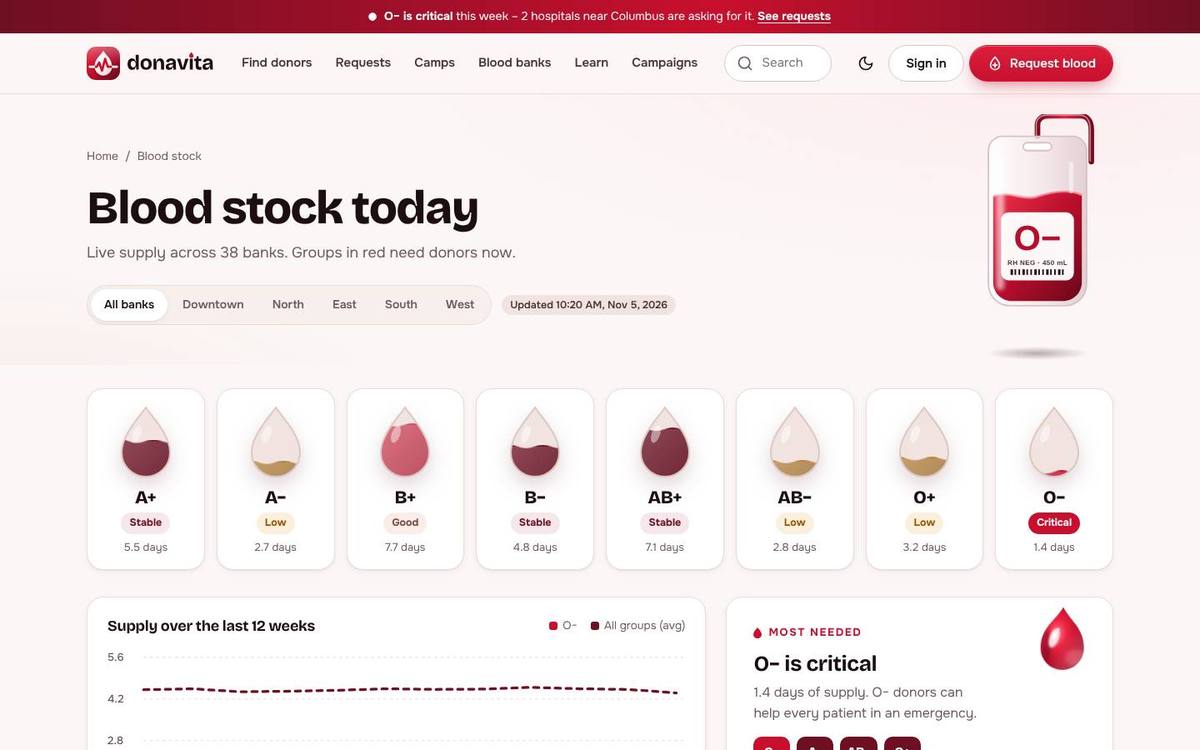
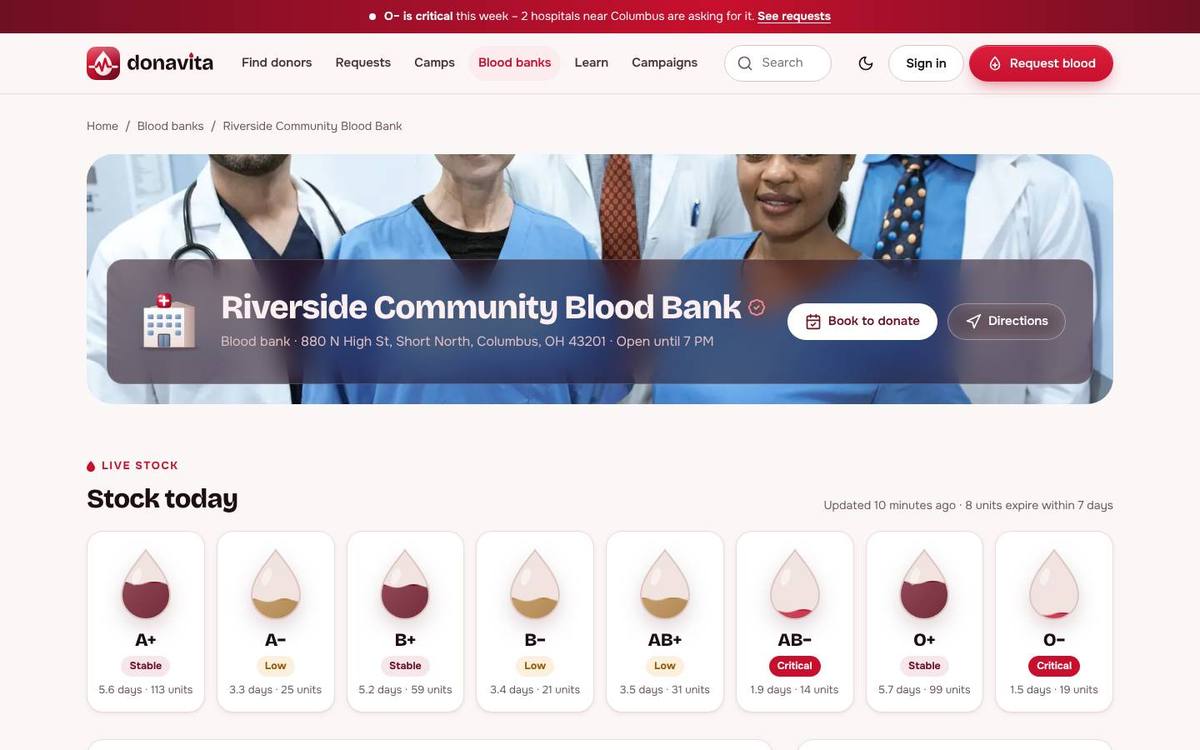
Every donation becomes bags by component (for example whole blood → red cells, platelets, plasma) that start in quarantine, pass or fail screening and then count as stock until issued, expired or discarded. Each organisation sets a target per blood group; the level is critical, low, stable or good against that target (percentages in Rules) and shown as days of supply.
The public Blood stock page shows the drops by group, the most needed groups, stock by component and region and a 12-week trend. In Network mode Blood banks lists every working hospital and blood bank with its stock strip, hours, map and drives; each organisation decides whether its stock is public.
Learn & eligibility
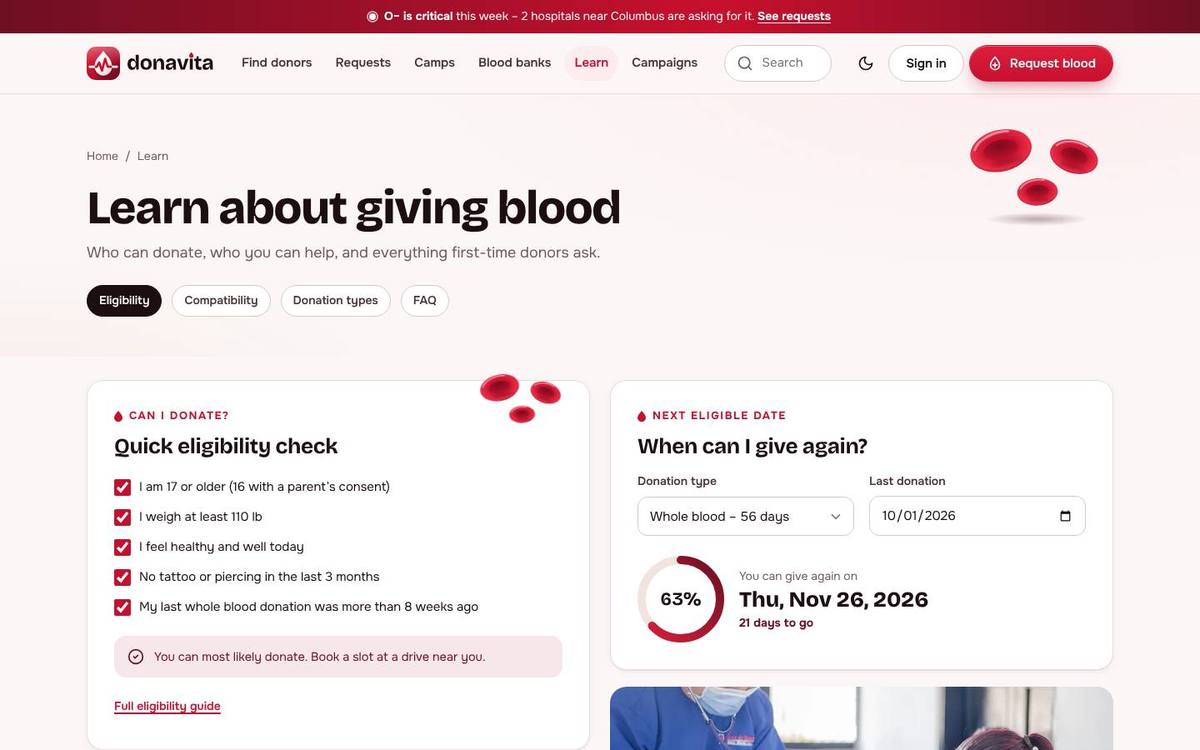
The Learn page explains who can give to whom (a compatibility chart for all eight groups), the donation types with their waiting times, a quick eligibility check (your questions) and a next-date calculator: pick the last donation type and date, see the earliest date for each type. Learn FAQs are edited in Pages & languages › FAQ; waiting times in General settings › Donation types.
Maps (Leaflet + OpenStreetMap)
Maps on the home page, Find donors, requests, drives and blood bank pages use Leaflet (bundled) with OpenStreetMap-compatible tiles – no key is needed. In the dark theme the map switches to dark tiles.
- General settings › Maps: tile address for light and dark (
{z}/{x}/{y}), the credit line of each, map centre and zoom. - Places: ZIP codes are found from the bundled US ZIP list; new city names are looked up once with OpenStreetMap Nominatim and cached (switch it off with Find places by name: off). Organisations and drives can also enter exact latitude / longitude.
- For busy websites use a tile service you have an account with and enter its tile address and credit.
Donor panel & donor card
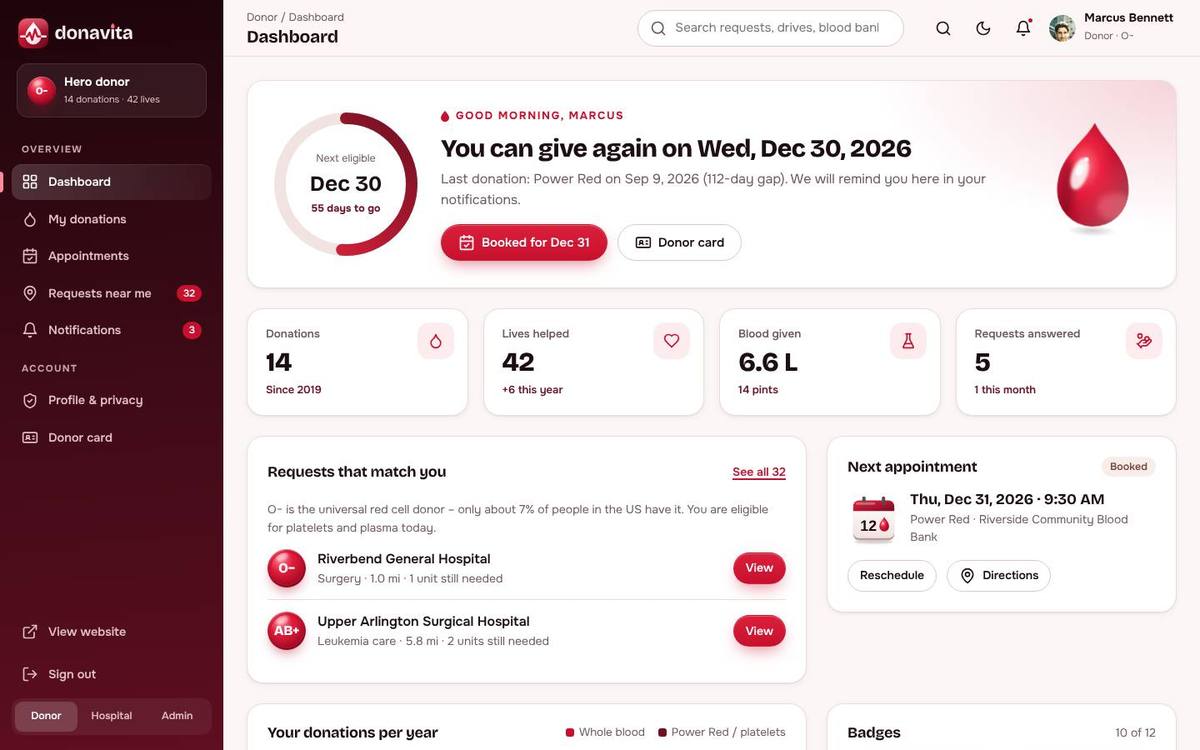
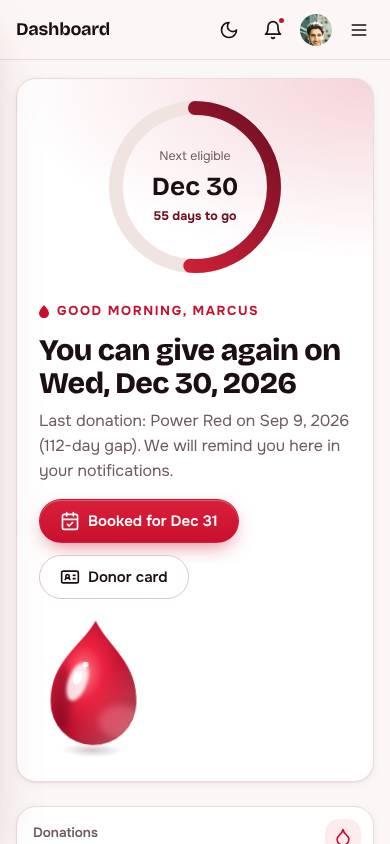
Donors register with their blood group, ZIP and phone (confirmed with a code). The dashboard shows the next eligible date with a ring, donations, lives helped, litres given, the next appointment, requests that match them, badges and “before you come” tips.
- My donations – every donation with place, type and bag ID; a certificate PDF for each; CSV download.
- Appointments – upcoming and past, change the slot, cancel, add to the calendar.
- Requests near me – open requests the donor can answer, and contact requests to accept or decline.
- Notifications – the bell list; channel choices per event (SMS, WhatsApp, e-mail, app) and the alert radius in Profile.
- Profile & privacy – personal details, the privacy switches, ID verification upload (staff mark donors verified).
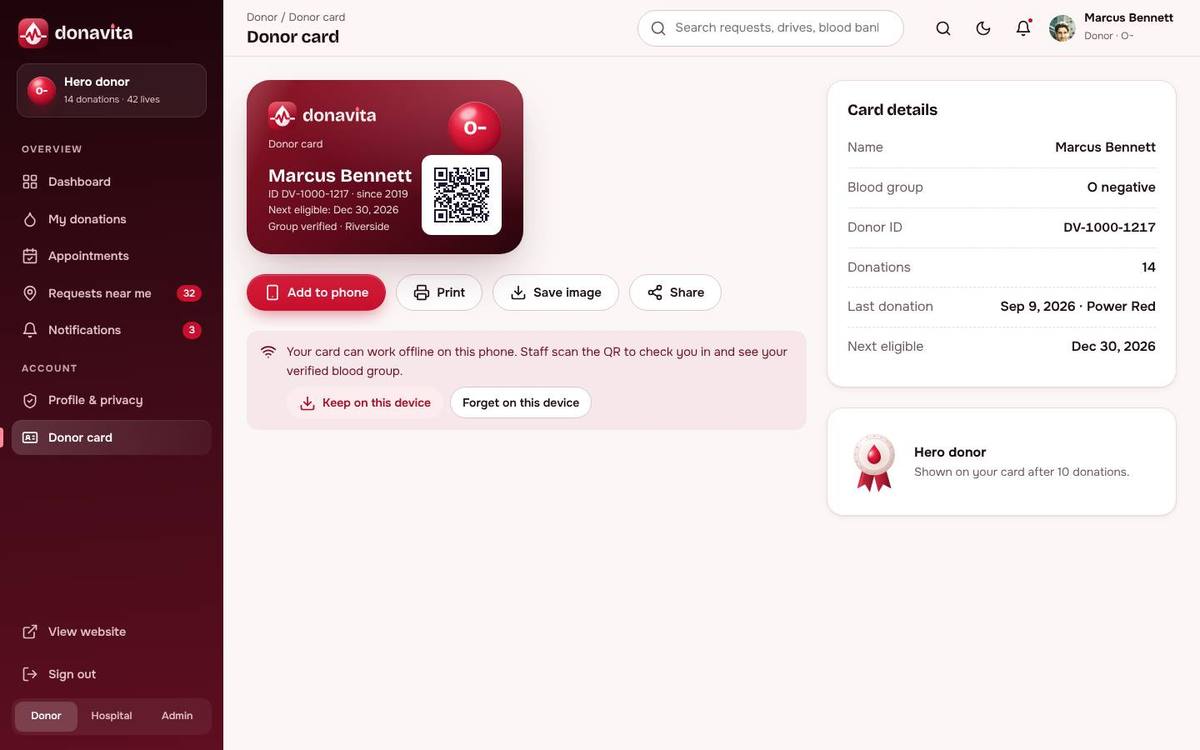
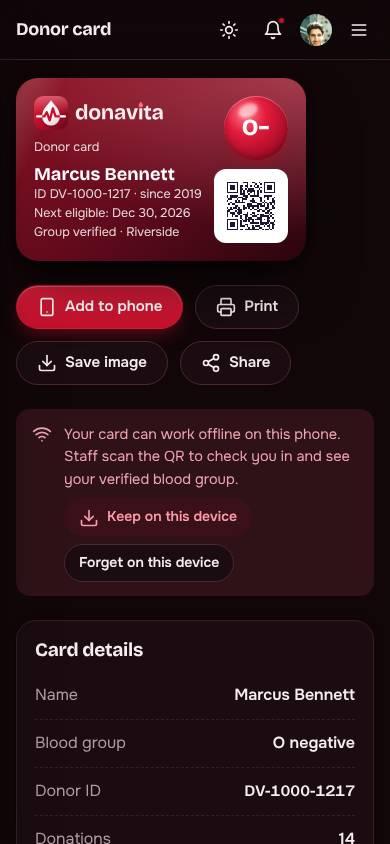
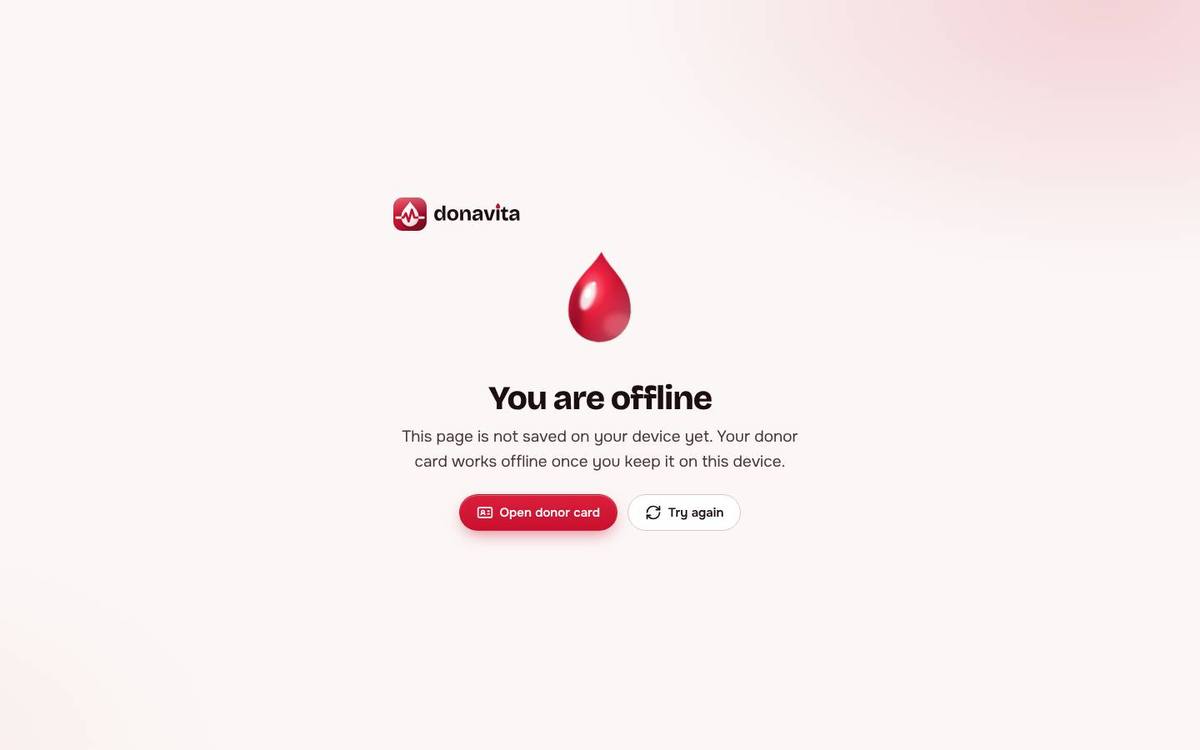
- Donor card – card number, blood group and a QR code for check-in. Keep on this device stores the card for offline use in the installed app; signing out removes it.
Hospital / Staff panel
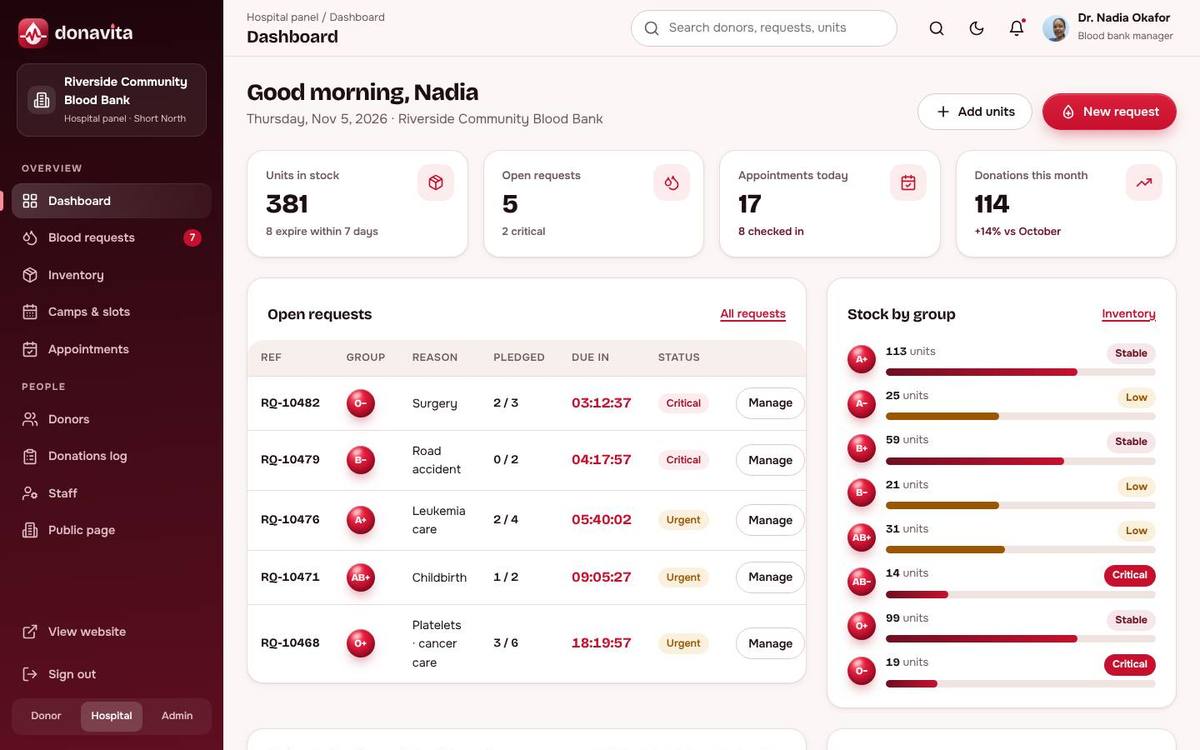
In Network mode every approved hospital or blood bank has its own panel; in Single organisation mode it is the Staff panel of your center. Staff see only their own organisation.
| Screen | What it does |
|---|---|
| Dashboard | Today's appointments, open requests, stock by group, donations this month, expiring units, the 12-week trend. |
| Blood requests | New request with preview, matched donors, pledges to confirm, received units, fulfil and close. |
| Inventory | Bags by group and component with bag ID, screening, expiry and status; add units, issue to a request, discard; targets per group; CSV. |
| Camps & slots | Drives with slots, beds and donation types; the day's list and QR check-in. |
| Appointments | Today and upcoming: checked in, in the chair, donated, deferred, no-show; walk-ins. |
| Donors | Donors who gave or booked here, with history and verification. |
| Donations log | Every donation with bag ID and screening; find by bag ID; CSV. |
| Staff | Invite staff as manager, nurse, lab or desk and tick their actions. |
| Public page | Network: description, photo, hours, address, map pin, public stock on / off and the organisation's own social links. |
Admin panel
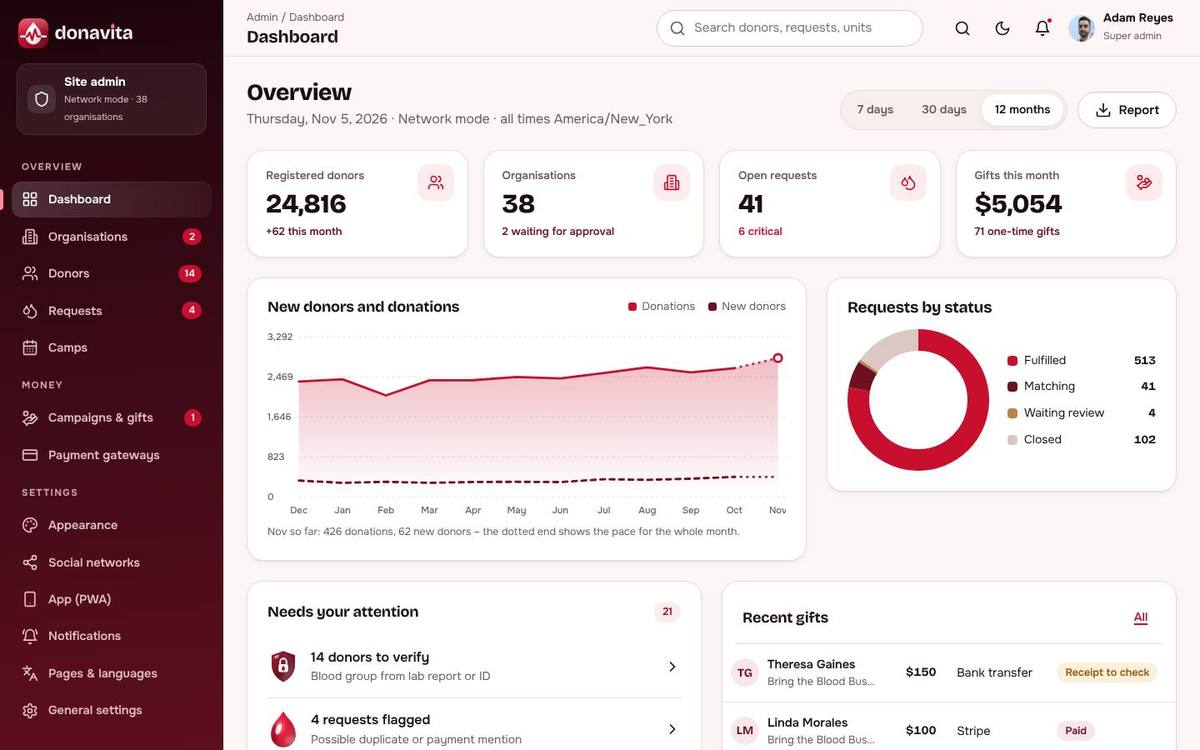
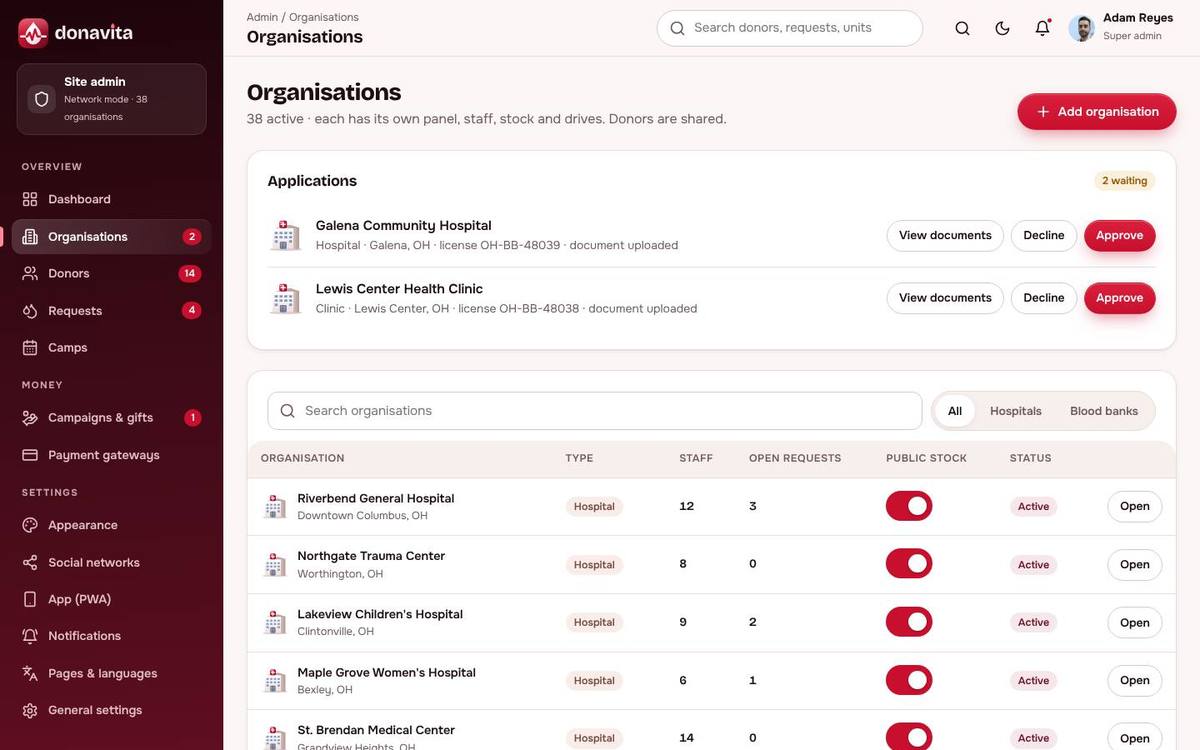
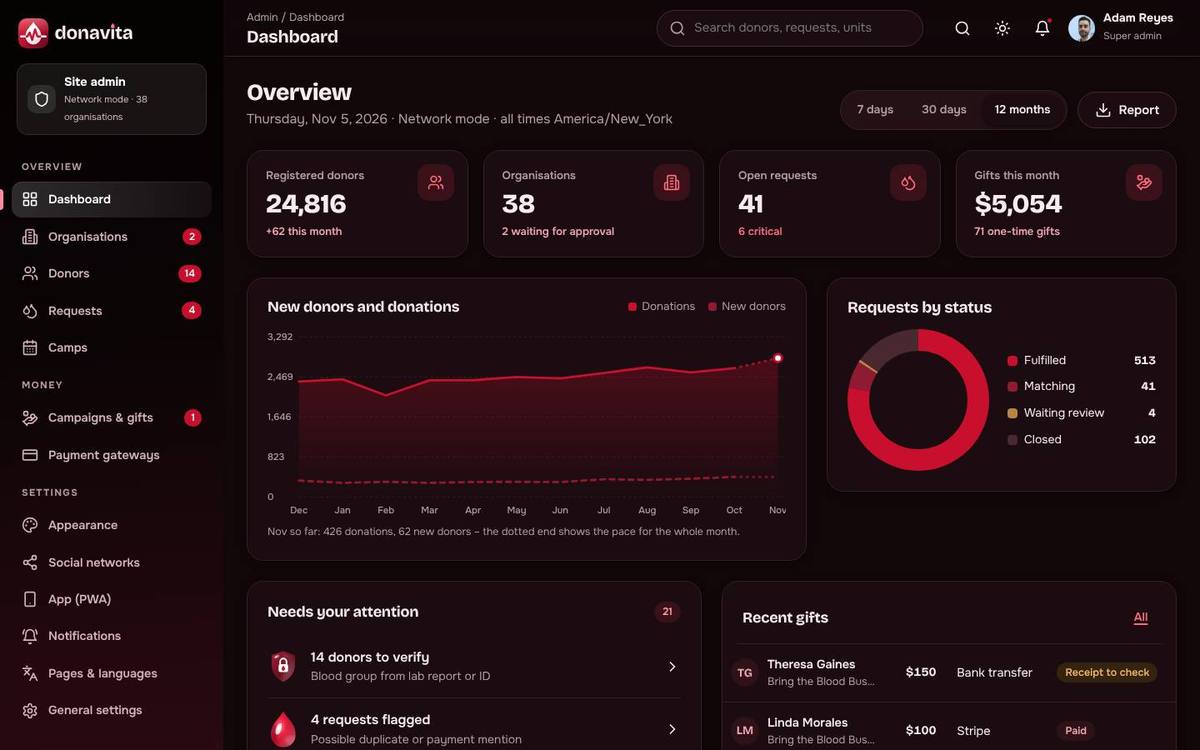
The dashboard shows donors, donations, requests, lives helped and gifts for the range you pick, the 12-month chart, stock across the site, items waiting for you (requests to review, applications, bank transfers, donors to verify) and the latest activity.
- Organisations (Network) – list with type, staff, stock and status; applications to approve or reject; suspend; add one yourself.
- Donors – search and filter by group, eligibility and verification; verify documents; CSV download.
- Requests – every request with filters, the review queue and flagged requests.
- Camps – every drive across the site; create or edit one for any organisation.
- Campaigns & gifts – campaigns, gifts, bank transfers to check, refunds; CSV of gifts.
Moderation & safety
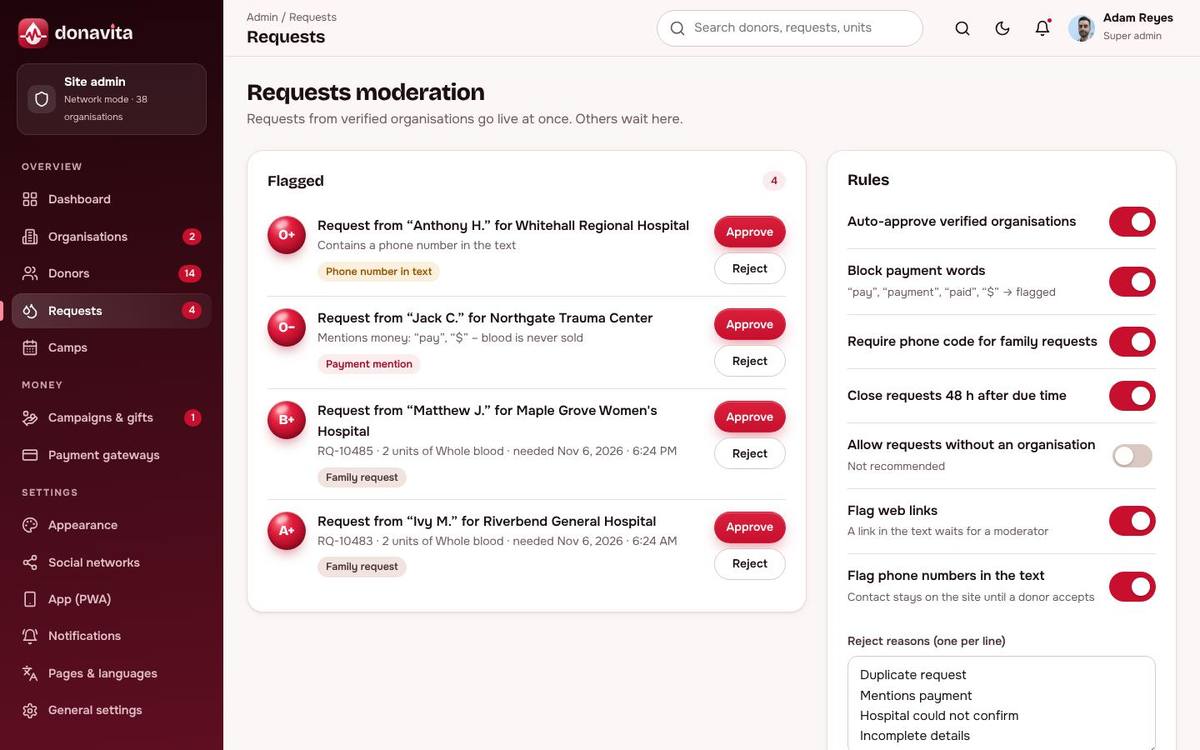
- Blood is never sold: request and contact texts are scanned for payment words, links and phone numbers (lists in Requests › Rules); a match sends the request to review with the reason shown.
- Family requests need a confirmed phone number and, by default, are checked before they go live. Each request page shows your “Never pay a donor” note.
- Donor contact details stay hidden until the donor accepts; donor documents, receipts and organisation papers are private files only staff can open.
- Sign-in and code requests are throttled; codes have a length, lifetime and a number of tries you set.
Campaigns & one-time gifts
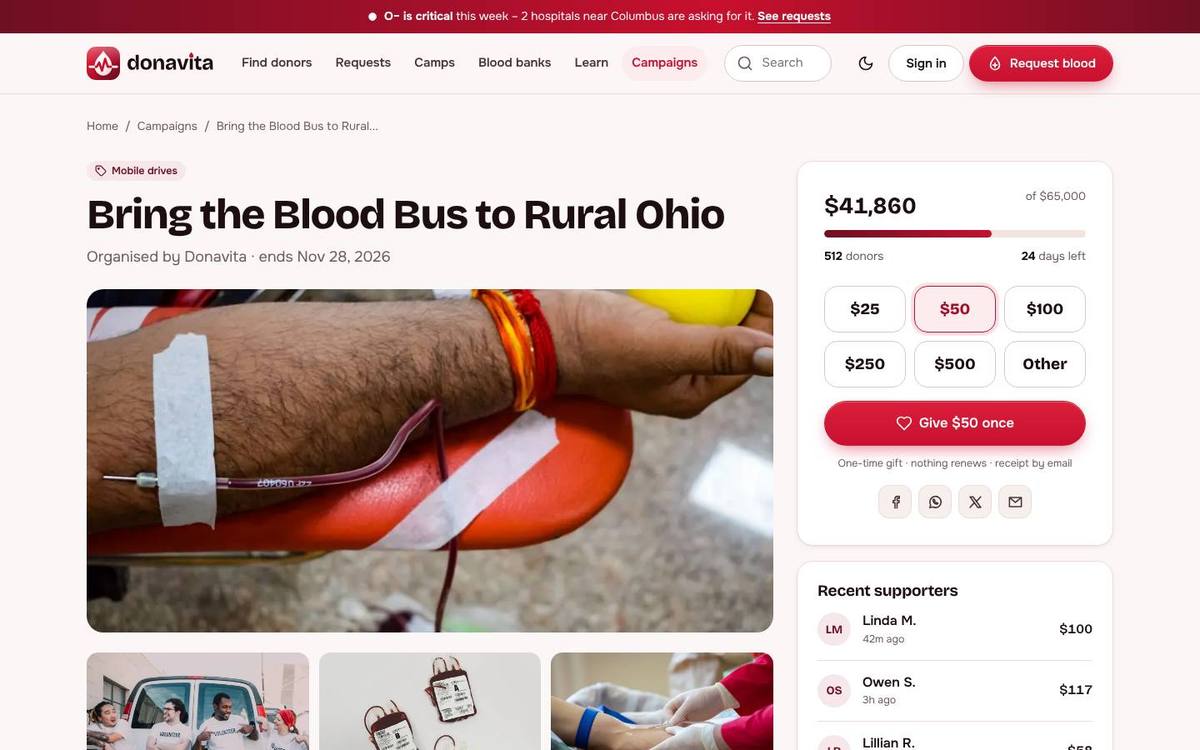
Campaigns raise money for things like a blood bus, cold-chain fridges or donor care kits. Each has a goal, cover photo, story, budget lines, updates and the list of gifts (names or “Anonymous”). Supporters can also give to the general fund (its name is a setting).
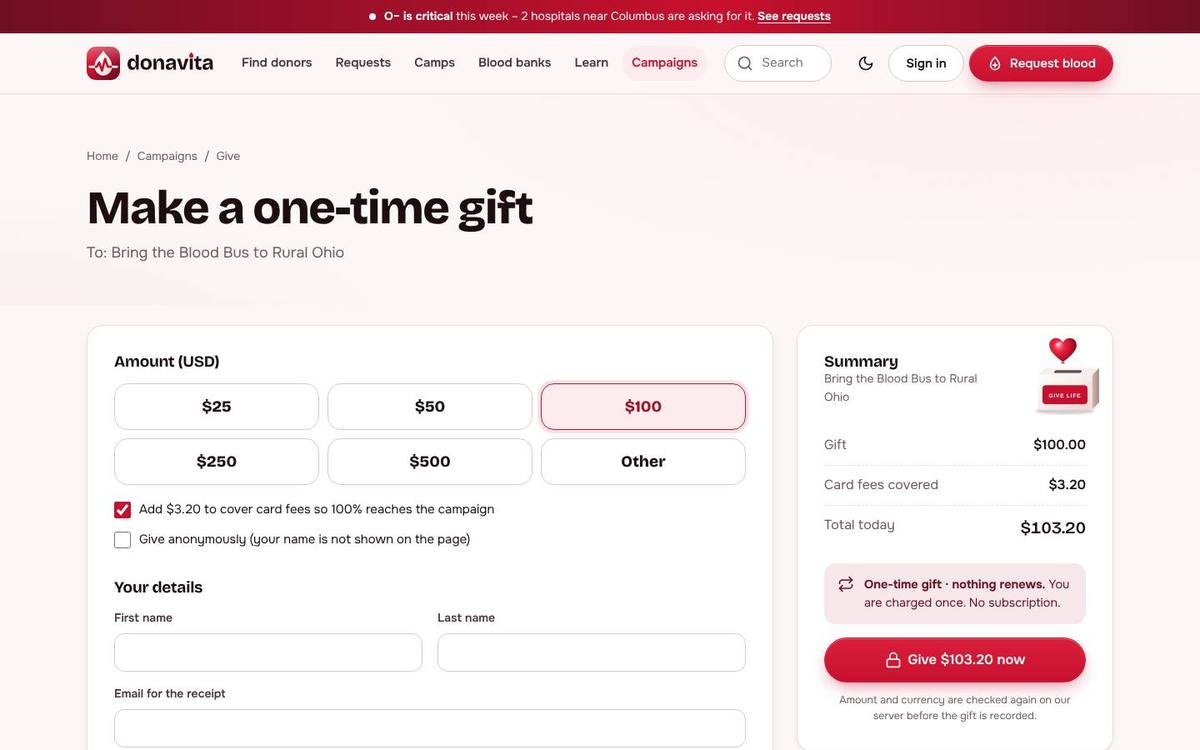
The checkout offers the suggested amounts or any amount between the smallest and largest gift, “cover the processing fee” (percent + fixed, your settings), name, e-mail, a message and “give anonymously”. After payment the giver sees a thank-you page with the receipt (receipt number, printable) and gets the receipt by e-mail. Every gift is a one-time payment – no auto-renew.
Payment gateways & webhook URLs
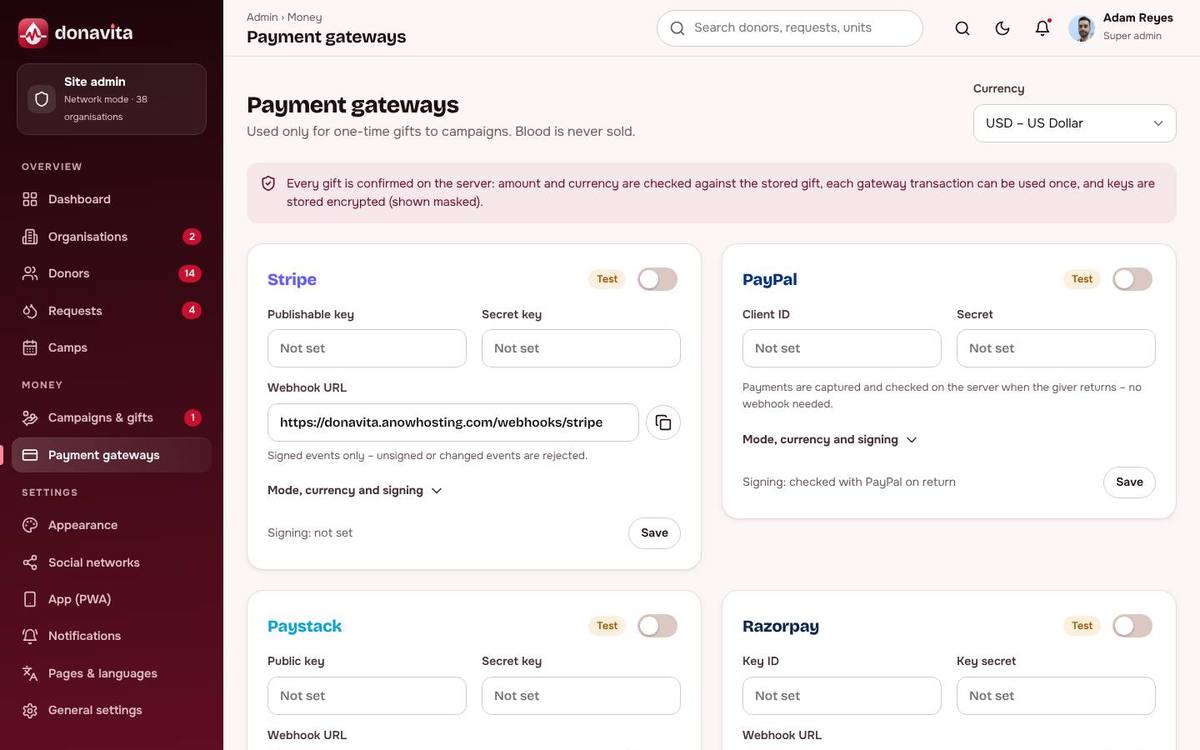
Open Admin › Payment gateways. Each gateway has its own card: on / off, test (sandbox) or live, the keys, the charge currency and the webhook URL with a copy button. Keys are stored encrypted and shown masked.
| Gateway | Keys | Webhook URL / events |
|---|---|---|
| Stripe (cards worldwide) | Publishable key, secret key, webhook signing secret | https://your-site.com/webhooks/stripe – event payment_intent.succeeded |
| PayPal | Client ID, secret | No webhook needed – the order is captured and checked with PayPal on return. |
| Paystack (Nigeria, Ghana, Kenya, South Africa) | Public key, secret key | https://your-site.com/webhooks/paystack – event charge.success (signed with your secret key) |
| Razorpay (India: UPI, cards, net banking) | Key ID, key secret, webhook secret | https://your-site.com/webhooks/razorpay – events payment.captured, order.paid |
| Bank transfer | Bank details shown at checkout | The giver uploads the receipt; you approve it (see below). |
Paste each webhook URL into the gateway's dashboard (Stripe Developers › Webhooks, Paystack Settings › API Keys & Webhooks, Razorpay Settings › Webhooks). The exact URLs for your domain are shown on each card. When a gateway works in another currency than your site, set its charge currency and the exchange rate in the same screen.
Bank transfer
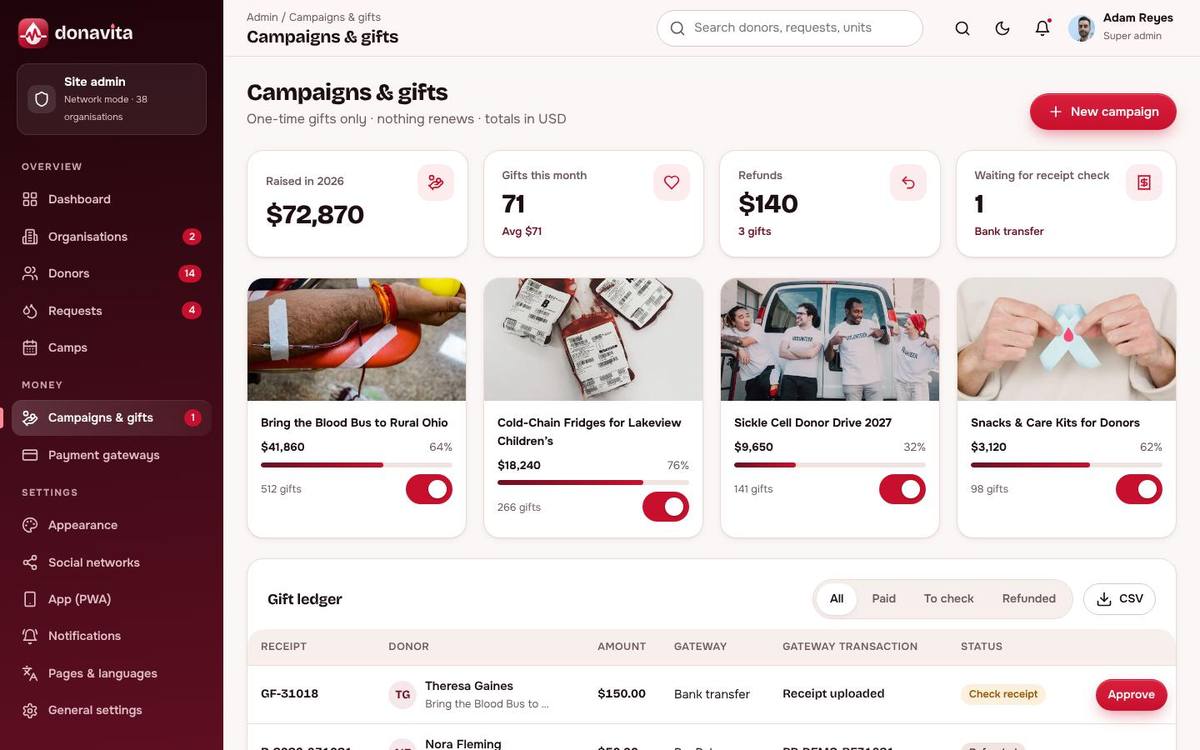
With bank transfer on, the checkout shows your bank details and the gift number to use as reference. The giver uploads the transfer receipt (image or PDF, largest size is a setting) and the gift waits as review. You get a bell message and an e-mail; open Campaigns & gifts › Bank transfers, view the receipt, enter the bank reference and approve – the gift is counted and the receipt e-mail goes out – or reject with a reason.
How payments are protected
- The amount and currency always come from the stored gift on the server; what the browser sends is never trusted.
- Every payment is confirmed with the gateway on the server (return page, verify API) or by a signed webhook that is checked over the raw request body; a missing or wrong signature is refused and changes nothing.
- Each gateway transaction ID can be used once; completing a gift is idempotent and runs under a row lock, so a gift is counted once even when the return page and the webhook arrive together.
- The campaign total grows only inside that verified completion; refunds are recorded with the gateway refund ID.
- Receipts of bank transfers are private files; only the money team can open them.
Every settings area
| Menu | Screens |
|---|---|
| Appearance | Colour presets, custom colours, contrast check, theme default, motion / glass / 3D switches, logos and icons. |
| Social networks | The site's own social links with icons, “Add network”, order, on / off. |
| App (PWA) | App name, short name, description, colours, start page, display, icons, install prompt, iPhone hint, offline page. |
| Notifications | Notifications (SMS, WhatsApp, e-mail cards, event matrix, templates, quiet hours) · E-mail sending · E-mail templates. |
| Pages & languages | Pages, languages and auto-translate, Site mode · Website texts · FAQ · Donor stories. |
| General settings | General (site, contact, sign-in, maps, SEO) · Rules · Donation types · Team & permissions · Contact messages · Maintenance. |
| Payment gateways | Stripe, PayPal, Paystack, Razorpay, bank transfer, currency and exchange rates. |
Every text, number, list and switch of the website has one field in these screens – nothing needs to be changed in the code.
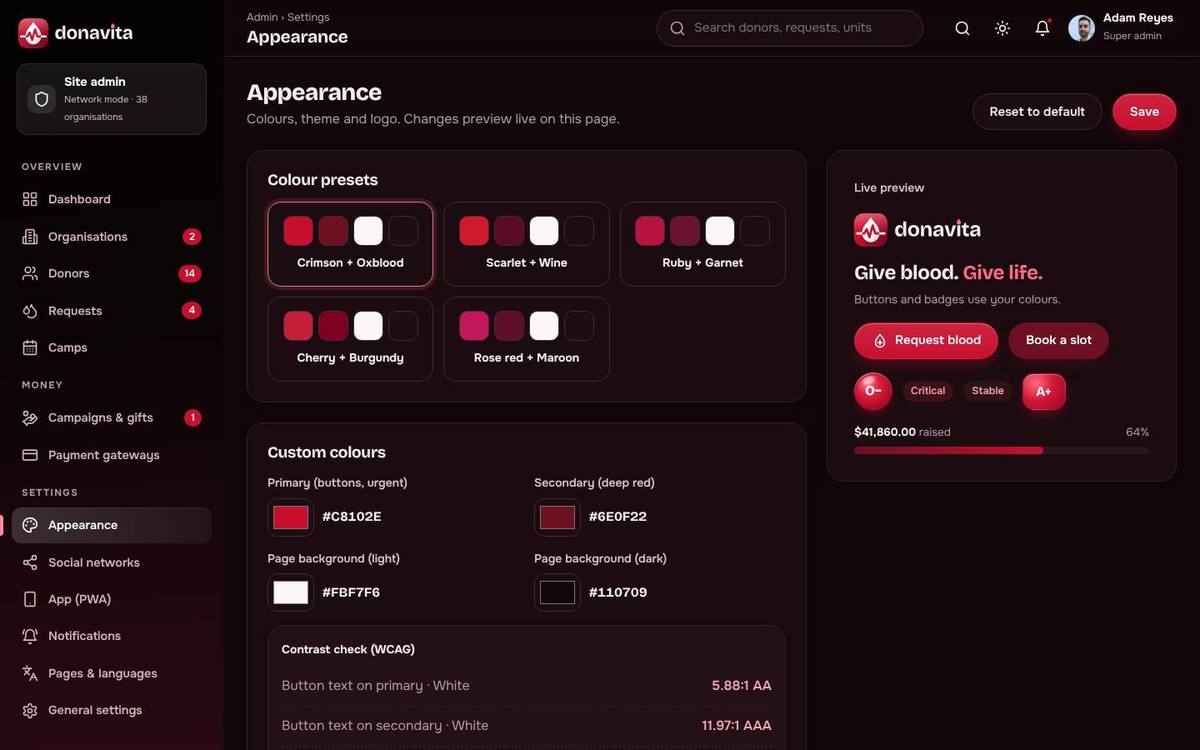
Appearance, presets & dark mode
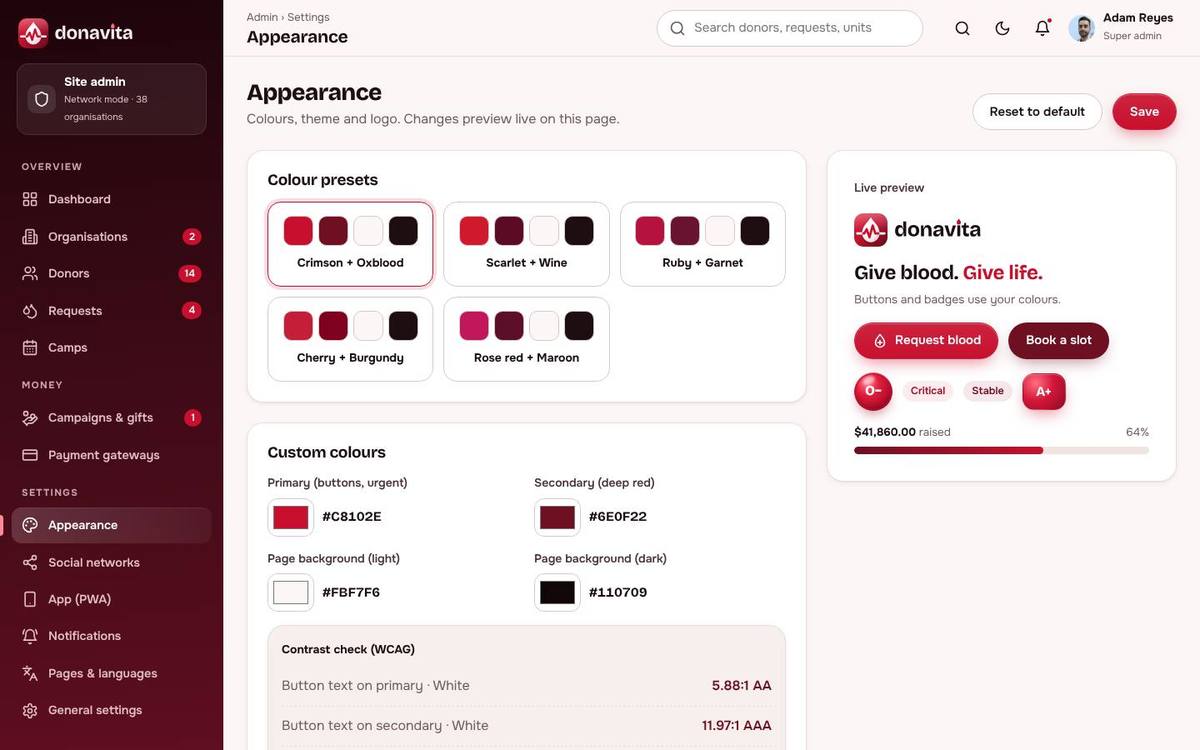
Admin › Appearance previews changes live on the page.
- Colour presets: Crimson & Oxblood (default), Scarlet & Wine, Ruby & Garnet, Cherry & Burgundy, Rose & Maroon.
- Custom colours: primary, secondary, light and dark backgrounds with colour pickers. The button text switches between white and ink automatically so it always passes WCAG AA; the contrast check lists every pair.
- Theme: default for new visitors – light, dark or automatic (follows the device). Each visitor's own choice is remembered in the browser and applied before the page paints (no flash).
- Motion (floating drops, heartbeat line, counters – always off for reduced-motion users), Glass panels (frosted cards over photos with a solid fallback) and 3D illustrations – each with its own switch.
- Logo & icons: light and dark logo, favicon.
App (PWA)
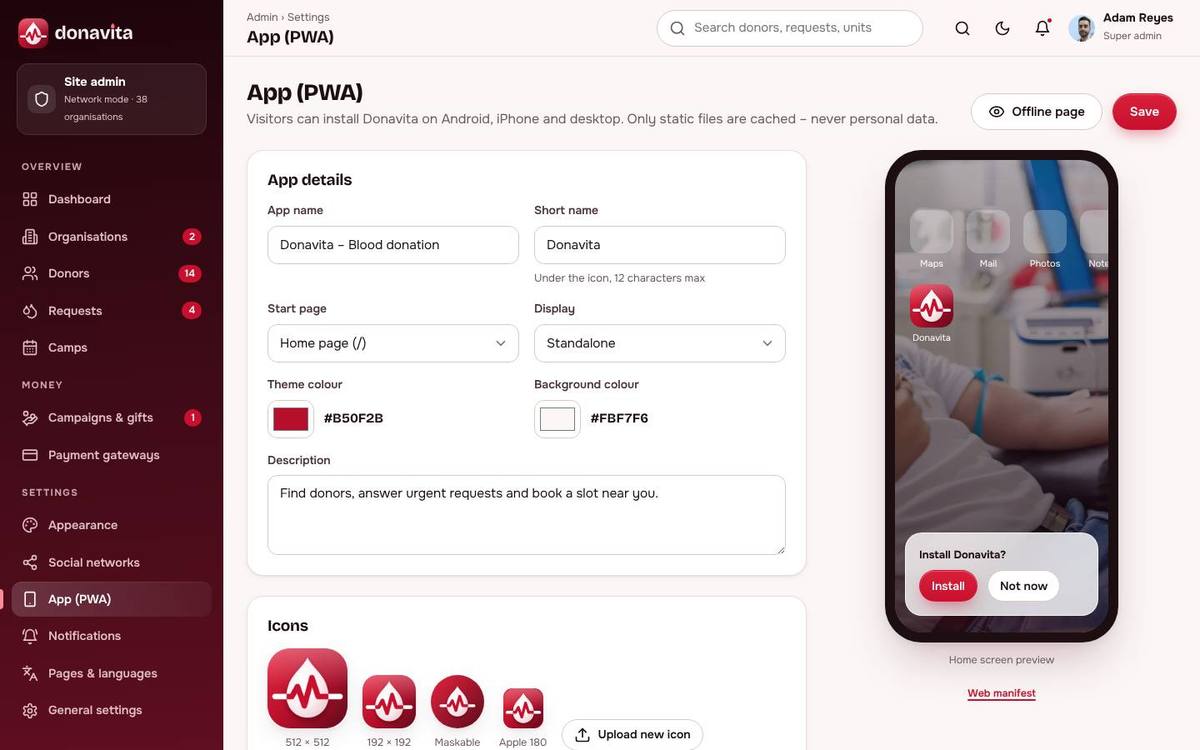
Donavita installs like an app on Android, iPhone and desktop. Admin › App (PWA) sets the app name and short name, description, theme and background colour, start page (home, donor panel, book a slot …), display mode, icons (any size, maskable, Apple 180) and the install prompt text.
- Android and desktop browsers show an Install app button; iPhone visitors get an “Add to Home Screen” hint (both can be switched off).
- The service worker keeps only the static files (styles, scripts, fonts, icons) and an offline page – never private pages or personal data. The donor card is kept offline only when the donor taps “Keep on this device”.
- The app follows the light / dark theme.
Notifications: SMS, WhatsApp, e-mail
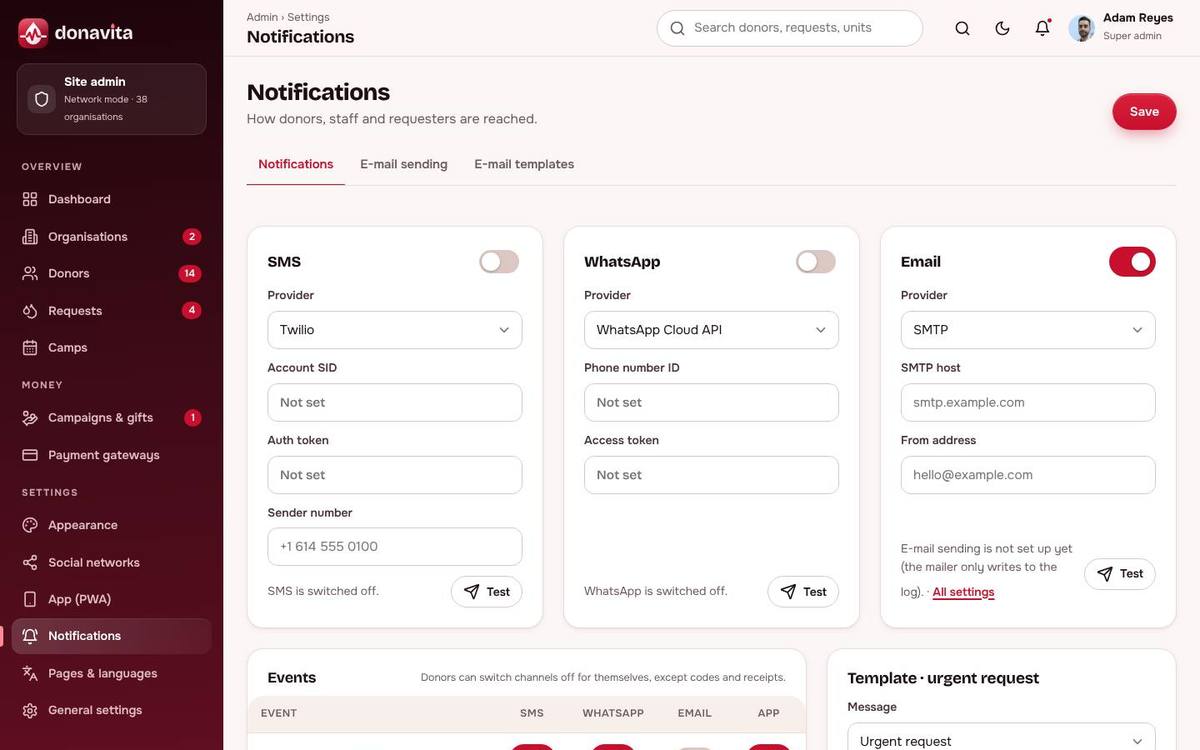
Admin › Notifications decides how donors, staff and requesters are reached.
| Channel | Providers | What you enter |
|---|---|---|
| SMTP, Sendmail, log only | Host, port, encryption, user, password, from address and name (tab E-mail sending); branded templates in E-mail templates. | |
| SMS | Twilio, Vonage | Account SID + auth token + sender number (Twilio) or API key + secret + sender (Vonage). Twilio also makes the voice call option for phone codes. |
| WhatsApp Cloud API, Twilio WhatsApp | Phone number ID + access token (Cloud API) or the WhatsApp sender number of your Twilio account. | |
| In-app | The bell | Always on. |
- Events: a matrix of events (urgent request near you, appointment booked, reminder, you can give again, thank you after a donation, contact request, gift receipt, requests to review …) × channels. Donors can switch channels off for themselves, except codes and receipts.
- Templates: every text with variables, a preview and “put the default text back”.
- Quiet hours: SMS and WhatsApp wait until the quiet hours end; critical requests ignore quiet hours for donors who opted in.
- Each card has Send a test; it uses the saved settings.
Pages, languages & auto-translate
- Pages: privacy policy, terms of use, “Host a drive” and your own pages with an editor; each can sit in a footer column (Give, Get help, About).
- Website texts: header menu, top line, home titles and sections, footer, install banner, sign-in and register panels, about, contact, drives, stock and learn texts – Network and Single organisation versions where they differ.
- FAQ (Learn, Request, Give groups) and Donor stories.
- Languages: add a language (name, code, direction), set the default, switch it on. Auto-translate fills every text at once with DeepL, Google Cloud Translation or a LibreTranslate server (your key); the translation editor stays fully editable afterwards and shows what is still missing.
General settings & rules
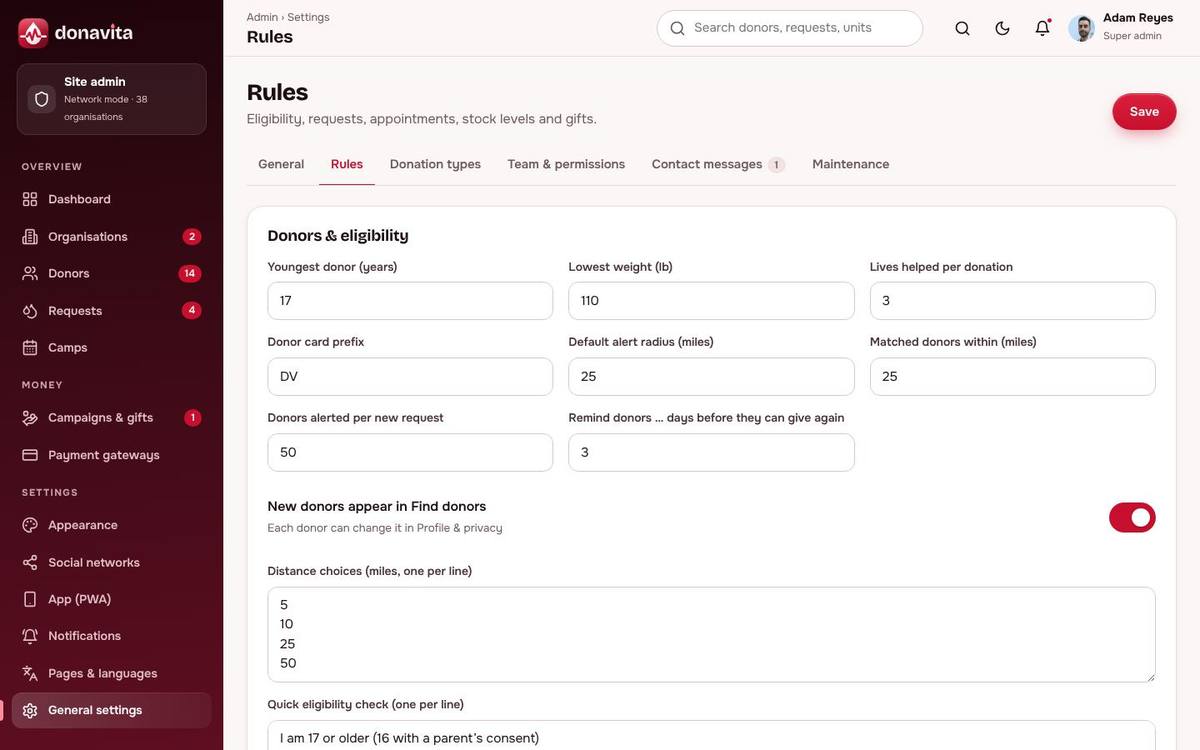
Admin › General settings has six tabs:
| Tab | Fields |
|---|---|
| General | Site name, tagline, region served, country, currency, time zone, date and time format; contact details and where team alerts go; donor registration, phone codes (length, lifetime, tries), Google and Apple sign-in, always use https://; maps; search engine texts and share image. |
| Rules | Donors & eligibility (youngest age, lowest weight, lives per donation, card prefix, alert radius, donors alerted per request, eligibility questions); blood requests (review, numbering, urgency hours, reasons, relations, pledge times, never-pay note); appointments & drives (slot length, days ahead, change deadline, reminder, health questions, what to bring); blood stock (target, critical / low / good %, expiry warning, shelf life per component, bag prefix); gifts (amounts, limits, fee, general fund, numbering, receipt size). |
| Donation types | Whole blood, Power Red, platelets, plasma: waiting days, yearly maximum, duration, volume, groups that may give it. |
| Team & permissions | Site team members and the sections each may open. |
| Contact messages | Messages from the contact page with topic and reply status. |
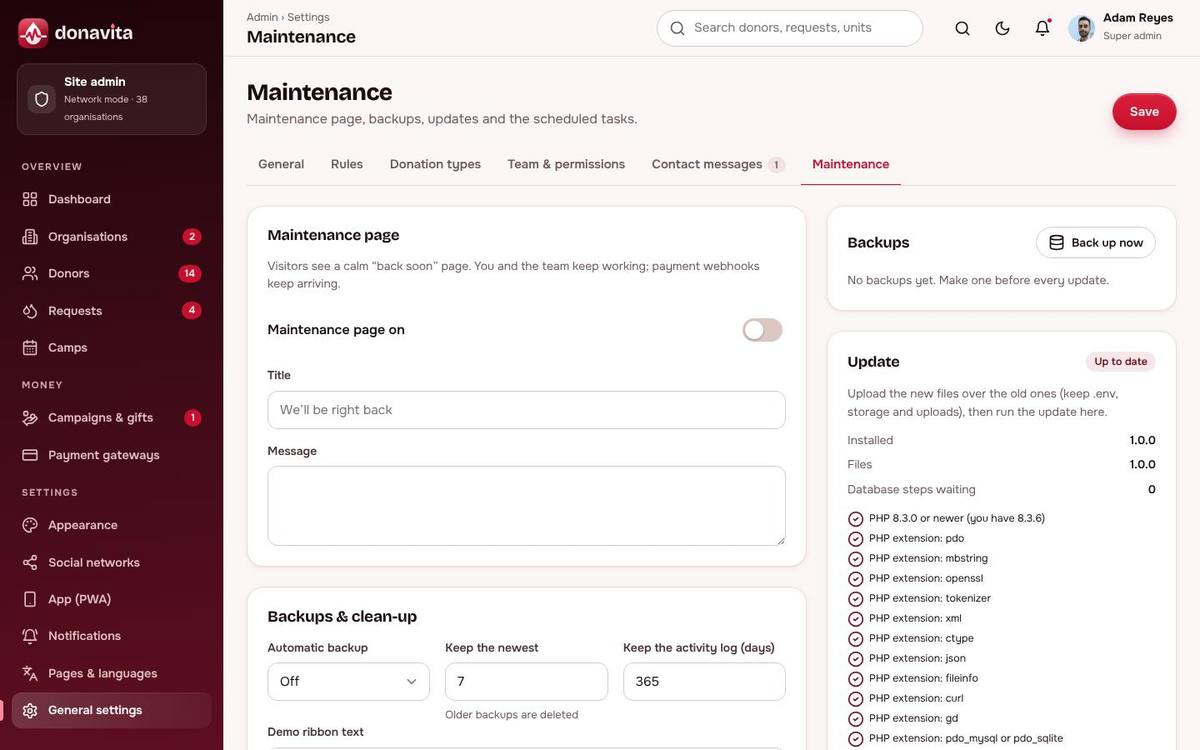
| Maintenance | Maintenance page, backups, update, panel addresses, cron line and last run, demo ribbon text. |
Team & permissions
Invite people to the admin panel in General settings › Team & permissions and tick the sections they may open: dashboard, organisations, donors, requests, camps, money, settings. Only a super admin manages admins, and nobody changes their own access. Organisation staff are managed inside each organisation's panel (manager, nurse, lab, desk with their actions).
SEO & speed
- Titles and descriptions per page, Open Graph share image, schema.org data for organisations, events (drives) and the site,
sitemap.xmlandrobots.txt. - No build step and no external CDN: CSS, scripts and fonts are served from your server with long cache headers and version numbers; photos are WebP.
Backups & maintenance
- Back up now or automatic backups (daily or weekly at 2 AM); keep the newest N; download from the list. Backups are compressed SQL files in
storage/app/private/backups. - Maintenance page with your title and message – the team can still sign in.
- Activity log with a keep time; old notifications are pruned.
Demo mode
For a public demo set in .env:
DEMO_MODE=true
APP_DEBUG=false- Settings, gateways, the team, languages, uploads, deletes, the mode switch and the updater are locked. The everyday flows stay open so visitors can try them: post a request (it waits for review), pledge, book and change a slot, ask a donor for contact, give (bank transfer waits for approval), and in the panels check-in, walk-ins, recording and screening donations, adding and issuing units, moderation and transfer approval. A short ribbon says it is a demo.
- The sign-in page shows one-click logins:
/demo-login/admin,/demo-login/org,/demo-login/donor. - No e-mail, SMS or WhatsApp is sent; the phone code is shown on the page (
246810). - With the cron job running,
dv:demo-todaykeeps today's appointments, gifts and requests current every 5 minutes, anddv:demo-resetreloads the demo every 6 hours. Run once after installing:php artisan dv:demo-reset --force.
Updating
- Make a backup (General settings › Maintenance › Back up now) and download it with a copy of your files.
- Upload the files of the new version over the old ones. Keep
.env,storageandpublic/uploads. - Open General settings › Maintenance › Update and press Run update (or run
php artisan dv:update). It applies the database changes and new default settings. - Reload with Ctrl + F5.
Artisan commands
| Command | What it does |
|---|---|
php artisan dv:admin-password you@example.com | New password for an admin or staff account (random when you leave it out). |
php artisan dv:backup | Compressed SQL backup now. |
php artisan dv:update | Database changes and new settings after uploading a new version. |
php artisan dv:daily | Reminders, queued texts, old requests and units, today's stock snapshot. |
php artisan dv:prune | Old notifications and activity rows. |
php artisan dv:demo-reset --force | Fresh demo data (demo mode only). |
php artisan dv:demo-today | Moves the demo day to now (demo mode only). |
php artisan dv:scan-strings | Collects new texts for the translation editor. |
FAQ & troubleshooting
The page shows “500” or a blank page
Check that storage, bootstrap/cache and public/uploads are writable and that PHP is 8.3+. Set APP_DEBUG=true in .env for a moment to see the message, then set it back. The log is in storage/logs.
The installer does not start / shows 404
The .htaccess file did not reach the document root (hidden files) or mod_rewrite is off. Alternatively point the document root to public.
E-mails, SMS or WhatsApp messages do not arrive
Use Send a test on each card in Notifications and check the message it returns. Make sure the cron job runs – queued texts and reminders are sent by dv:daily. For e-mail, the from address should belong to your domain.
A gift paid by card still shows as pending
Check that the webhook URL is added in the gateway dashboard with the events listed above and that the signing secret in Payment gateways matches.
The map is empty
Check the tile address in General settings › Maps (it needs {z}/{x}/{y}) and that your server sends pages over HTTPS when the tile service needs it.
Can a hospital use its own name and logo?
Yes – in Network mode every organisation has its own public page with photo, hours, map, stock and social links. The website itself carries your brand.
Can donors pay or be paid for blood?
No. Requests are free, payment offers are flagged, and money is only accepted as gifts to your campaigns or general fund.
How do I move the admin panel to another address?
Set ADMIN_PATH (and ORG_PATH, DONOR_PATH) in .env; Maintenance shows the current addresses.
Credits & licences
- Laravel (MIT), Leaflet (BSD-2), dompdf (LGPL), map data © OpenStreetMap contributors (ODbL), dark tiles © CARTO.
- Fonts: Bricolage Grotesque and Onest (SIL Open Font License, included).
- Icons: Lucide (ISC). Demo photos: free stock photos (Pexels licence); the demo people and organisations are invented.
Changelog
1.0.0 – November 2026
Initial release: blood donation website script with Network (hospitals and blood banks with their own panels, applications, approval) or Single organisation mode; Find donors by group and distance with hidden contact until the donor accepts; blood requests with urgency, countdown, pledges, verified-phone family requests, review and payment-word flags; blood drives with slots, health check, reminders and QR check-in; inventory by bag with screening, expiry and targets; public blood stock with a 12-week trend; donor panel with next eligible date, certificates, appointments, alerts, privacy and an offline donor card; campaigns with one-time gifts through Stripe, PayPal, Paystack, Razorpay and bank transfer with signed webhooks; SMS, WhatsApp, e-mail and in-app notifications with quiet hours; Leaflet maps with light and dark tiles; light and dark theme, colour presets, installable app, social networks, languages with auto-translate, team permissions, backups, one-click update and demo mode.
Social networks
Admin › Social networks manages the links shown in the footer, on the contact and about pages and in e-mails. The built-in list brings its icons (Facebook, Instagram, X, YouTube, TikTok, LinkedIn, WhatsApp, Phone / Call, Telegram, Threads, Pinterest, Snapchat, Discord, Email, Website and more). Switch a network on, paste the link or number, drag to reorder.